
In part 10 you taught Kubernetes to check whether your containers are healthy and to stop them cleanly. Every container you have run so far could still use as much CPU and memory as the node would give it, and the scheduler placed Pods knowing nothing about their size. This part fixes that. You will give containers requests (what they need) and limits (the most they may use), watch the Linux kernel throttle a CPU hog and kill a memory hog, learn the three QoS classes that decide who goes first when a node runs short, and set namespace-wide defaults and budgets with LimitRange and ResourceQuota. You need the kind cluster and the k8s-from-zero namespace from part 4. We tested on kind v0.33.0 (node image v1.37.0) with kubectl v1.37.2; our node is k8s-ep10-control-plane, with 8 CPUs and about 16 GiB of memory.
What you will build
Two hogs and three quiet Pods. cpu-hog runs a busy loop under a 200m CPU limit, and you read its throttling counters straight from the kernel. mem-hog allocates memory until it crosses a 64Mi limit and gets OOM-killed. Three sleep Pods with different resource settings land in the three QoS classes. One Pod asks for 64 CPUs and never gets scheduled. Then a second namespace, team-a, gets default sizes and a budget, and you watch the budget turn Pods away.
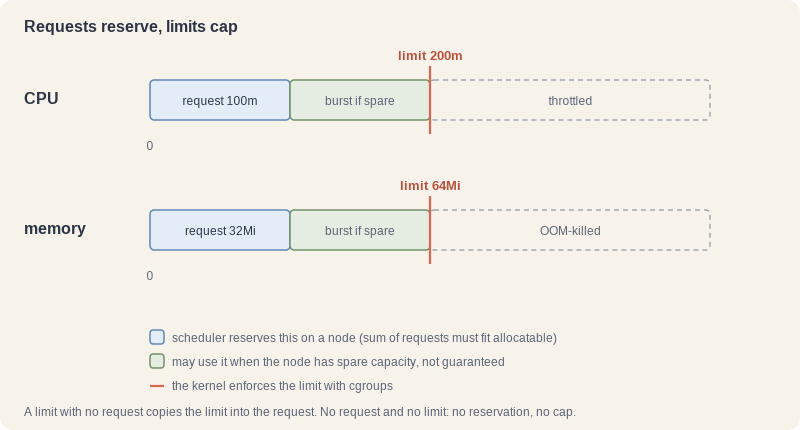
Requests reserve, limits cap
Each container can set two numbers per resource under resources, as the resource management page explains:
- A request is what the container needs. The scheduler (part 2) only places a Pod on a node where the sum of all requests, including the new Pod’s, fits the node’s allocatable capacity. It counts requests, not current usage, so a Pod can be refused by a node that looks idle. The kubelet also reserves at least the request for the container.
- A limit is the most the container may use. The kubelet passes it to the container runtime, which writes it into Linux cgroups, and the kernel enforces it.
A container may use more than its request when the node has spare capacity; it may never go past its CPU limit. If you set only a limit, Kubernetes copies it into the request.
The units trip people up:
- CPU is measured in cores (or virtual cores on a VM).
1is one core,500mis half a core,100mis a tenth. The smallest step is1m. A CPU amount is absolute:500mis about the same compute on a 2-core or a 48-core machine. - Memory is measured in bytes. Use
MiandGi(powers of two: 64Mi is 67,108,864 bytes) orMandG(powers of ten). Watch the case:400mof memory means 0.4 bytes, and is almost always a typo for400Mi.
Your node’s capacity and what is already reserved are in kubectl describe node:
kubectl describe node k8s-ep10-control-planeExplain this command
kubectl describe node k8s-ep10-control-planekubectlThe Kubernetes command-line client. Subcommands and flags are documented under kubernetes.io/docs/reference/kubectl/.describeShow details of a specific resource or group of resources. The describe docs say this includes related resources such as events or controllers.nodeThe resource type.k8s-ep10-control-planeThe object name.
...
Allocatable:
  cpu:                8
  ephemeral-storage:  136793825280
  hugepages-1Gi:      0
  hugepages-2Mi:      0
  memory:             16386416Ki
  pods:               110
...
Allocated resources:
  (Total limits may be over 100 percent, i.e., overcommitted.)
  Resource           Requests    Limits
  --------           --------    ------
  cpu                950m (11%)  0 (0%)
  memory             290Mi (1%)  340Mi (2%)
...
The 950m of CPU already requested belongs to the control plane and system Pods. Note the line about overcommit: limits can add up to more than the node has; requests cannot.
CPU slows down, memory gets killed
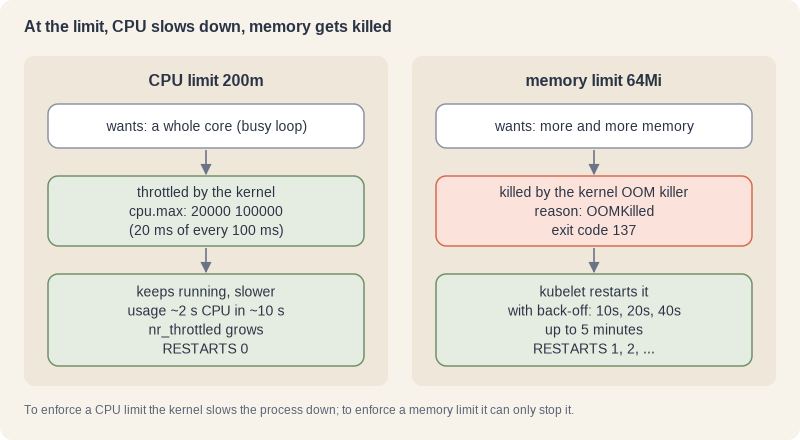
The two resources behave differently at the limit, and this is the single most useful fact in this part:
- CPU over the limit is throttled. In each scheduling period the kernel checks whether the container has used its share, and if so, makes it wait. The container keeps running, just slower. Kubernetes never kills a container for using too much CPU.
- Memory over the limit is OOM-killed. When the container tries to go past its memory limit, the kernel’s out-of-memory killer stops it. On cgroup v2 nodes, with the default kubelet setting, all processes in the container are killed together; the container ends with reason
OOMKilledand exit code 137, and the kubelet restarts it with the back-off you met in part 10. The docs note that this is reactive: a container may briefly sit above its limit before the kill.
Try it: a CPU hog and a memory hog
- Save this as
cpu-hog.yaml. The busy loop would happily use a whole core.
apiVersion: v1
kind: Pod
metadata:
  name: cpu-hog
  namespace: k8s-from-zero
  labels:
    app.kubernetes.io/name: cpu-hog
spec:
  containers:
    - name: app
      image: busybox:1.37
      # A busy loop that would happily use a whole core.
      command: ["sh", "-c", "while true; do :; done"]
      resources:
        requests:
          cpu: 100m
          memory: 16Mi
        limits:
          cpu: 200m
memory: 16Mi- Apply it and read the limit the kernel actually got. On a cgroup v2 node (kind’s default), each container sees its own cgroup at
/sys/fs/cgroup:
kubectl apply -f cpu-hog.yaml
kubectl exec -n k8s-from-zero cpu-hog -- cat /sys/fs/cgroup/cpu.max
kubectl exec -n k8s-from-zero cpu-hog -- cat /sys/fs/cgroup/memory.maxExplain this command
kubectl apply -f cpu-hog.yaml
kubectl exec -n k8s-from-zero cpu-hog -- cat /sys/fs/cgroup/cpu.max
kubectl exec -n k8s-from-zero cpu-hog -- cat /sys/fs/cgroup/memory.maxkubectlThe Kubernetes command-line client. Subcommands and flags are documented under kubernetes.io/docs/reference/kubectl/.applyApply a configuration to a resource by file name or stdin. The apply docs say the resource is created if it does not exist yet. JSON and YAML are accepted.-fShort form of --filename. The file, directory or URL that contains the configuration to apply.cpu-hog.yamlThe file named by --filename. apply creates the objects or updates them to match this file.kubectlThe Kubernetes command-line client. Subcommands and flags are documented under kubernetes.io/docs/reference/kubectl/.execExecute a command in a container. The synopsis is kubectl exec (POD | TYPE/NAME) [-c CONTAINER] [flags] -- COMMAND [args...].-nShort form of --namespace. If present, the namespace scope for this CLI request.k8s-from-zeroThe namespace name passed to --namespace.cpu-hogAn argument of this command: cpu-hog.--Ends kubectl's flags. The exec examples say to use two dashes so the command's own flags are read as that command's flags.catcat, run inside the container. It writes the named files to standard output./sys/fs/cgroup/cpu.maxA path inside the container: /sys/fs/cgroup/cpu.max.kubectlThe Kubernetes command-line client. Subcommands and flags are documented under kubernetes.io/docs/reference/kubectl/.execExecute a command in a container. The synopsis is kubectl exec (POD | TYPE/NAME) [-c CONTAINER] [flags] -- COMMAND [args...].-nShort form of --namespace. If present, the namespace scope for this CLI request.k8s-from-zeroThe namespace name passed to --namespace.cpu-hogAn argument of this command: cpu-hog.--Ends kubectl's flags. The exec examples say to use two dashes so the command's own flags are read as that command's flags.catcat, run inside the container. It writes the named files to standard output./sys/fs/cgroup/memory.maxA path inside the container: /sys/fs/cgroup/memory.max.
pod/cpu-hog created
20000 100000
16777216
20000 100000 means 20,000 microseconds of CPU in every 100,000-microsecond period: 0.2 of a core, which is your 200m. 16777216 bytes is the 16Mi memory limit.
- Read the throttling counters twice, about ten seconds apart:
kubectl exec -n k8s-from-zero cpu-hog -- cat /sys/fs/cgroup/cpu.stat
sleep 10
kubectl exec -n k8s-from-zero cpu-hog -- cat /sys/fs/cgroup/cpu.statExplain this command
kubectl exec -n k8s-from-zero cpu-hog -- cat /sys/fs/cgroup/cpu.stat
sleep 10
kubectl exec -n k8s-from-zero cpu-hog -- cat /sys/fs/cgroup/cpu.statkubectlThe Kubernetes command-line client. Subcommands and flags are documented under kubernetes.io/docs/reference/kubectl/.execExecute a command in a container. The synopsis is kubectl exec (POD | TYPE/NAME) [-c CONTAINER] [flags] -- COMMAND [args...].-nShort form of --namespace. If present, the namespace scope for this CLI request.k8s-from-zeroThe namespace name passed to --namespace.cpu-hogAn argument of this command: cpu-hog.--Ends kubectl's flags. The exec examples say to use two dashes so the command's own flags are read as that command's flags.catcat, run inside the container. It writes the named files to standard output./sys/fs/cgroup/cpu.statA path inside the container: /sys/fs/cgroup/cpu.stat.sleepThe command run in the container, or a shell pause. It waits the given time.10A numeric argument in this command.kubectlThe Kubernetes command-line client. Subcommands and flags are documented under kubernetes.io/docs/reference/kubectl/.execExecute a command in a container. The synopsis is kubectl exec (POD | TYPE/NAME) [-c CONTAINER] [flags] -- COMMAND [args...].-nShort form of --namespace. If present, the namespace scope for this CLI request.k8s-from-zeroThe namespace name passed to --namespace.cpu-hogAn argument of this command: cpu-hog.--Ends kubectl's flags. The exec examples say to use two dashes so the command's own flags are read as that command's flags.catcat, run inside the container. It writes the named files to standard output./sys/fs/cgroup/cpu.statA path inside the container: /sys/fs/cgroup/cpu.stat.
usage_usec 63677
...
nr_periods 3
nr_throttled 0
throttled_usec 0
...
usage_usec 2082788
...
nr_periods 104
nr_throttled 30
throttled_usec 1864874
...
In about ten seconds of wall time the loop got about two seconds of CPU (usage_usec grew by roughly 2,000,000), about 0.2 of a core, and spent about 1.9 seconds waiting (throttled_usec). It is still running with zero restarts:
kubectl get pod cpu-hog -n k8s-from-zeroExplain this command
kubectl get pod cpu-hog -n k8s-from-zerokubectlThe Kubernetes command-line client. Subcommands and flags are documented under kubernetes.io/docs/reference/kubectl/.getDisplay one or many resources. kubectl get prints a table of the most important information about the resources you name.podThe resource type to display. kubectl get points you to kubectl api-resources for the full list of types the server supports.cpu-hogThe object name.-nShort form of --namespace. If present, the namespace scope for this CLI request.k8s-from-zeroThe namespace name passed to --namespace.
NAME      READY   STATUS    RESTARTS   AGE
cpu-hog 1/1 Running 0 11s- Save this as
mem-hog.yaml.tail /dev/zerokeeps reading zeros into memory while it waits for a newline that never comes, so it grows until something stops it.
apiVersion: v1
kind: Pod
metadata:
  name: mem-hog
  namespace: k8s-from-zero
  labels:
    app.kubernetes.io/name: mem-hog
spec:
  containers:
    - name: app
      image: busybox:1.37
      # tail keeps reading /dev/zero into memory, waiting for a newline that never comes.
      command: ["sh", "-c", "echo allocating; tail /dev/zero"]
      resources:
        requests:
          cpu: 50m
          memory: 32Mi
        limits:
          cpu: 100m
memory: 64Mi- Apply it and look twice:
kubectl apply -f mem-hog.yaml
kubectl get pod mem-hog -n k8s-from-zero     # after a few seconds
kubectl get pod mem-hog -n k8s-from-zero # half a minute laterExplain this command
kubectl apply -f mem-hog.yaml
kubectl get pod mem-hog -n k8s-from-zero     # after a few seconds
kubectl get pod mem-hog -n k8s-from-zero # half a minute laterkubectlThe Kubernetes command-line client. Subcommands and flags are documented under kubernetes.io/docs/reference/kubectl/.applyApply a configuration to a resource by file name or stdin. The apply docs say the resource is created if it does not exist yet. JSON and YAML are accepted.-fShort form of --filename. The file, directory or URL that contains the configuration to apply.mem-hog.yamlThe file named by --filename. apply creates the objects or updates them to match this file.kubectlThe Kubernetes command-line client. Subcommands and flags are documented under kubernetes.io/docs/reference/kubectl/.getDisplay one or many resources. kubectl get prints a table of the most important information about the resources you name.podThe resource type to display. kubectl get points you to kubectl api-resources for the full list of types the server supports.mem-hogThe object name.-nShort form of --namespace. If present, the namespace scope for this CLI request.k8s-from-zeroThe namespace name passed to --namespace.#Shell. Starts a comment; the shell ignores the rest of the line.afterPart of the comment, not passed to kubectl.aPart of the comment, not passed to kubectl.fewPart of the comment, not passed to kubectl.secondsPart of the comment, not passed to kubectl.kubectlThe Kubernetes command-line client. Subcommands and flags are documented under kubernetes.io/docs/reference/kubectl/.getDisplay one or many resources. kubectl get prints a table of the most important information about the resources you name.podThe resource type to display. kubectl get points you to kubectl api-resources for the full list of types the server supports.mem-hogThe object name.-nShort form of --namespace. If present, the namespace scope for this CLI request.k8s-from-zeroThe namespace name passed to --namespace.#Shell. Starts a comment; the shell ignores the rest of the line.halfPart of the comment, not passed to kubectl.aPart of the comment, not passed to kubectl.minutePart of the comment, not passed to kubectl.laterPart of the comment, not passed to kubectl.
NAME      READY   STATUS      RESTARTS     AGE
mem-hog   0/1     OOMKilled   1 (6s ago)   8s
NAME      READY   STATUS      RESTARTS      AGE
mem-hog   0/1     OOMKilled   2 (29s ago)   33s
The container lives for about a second each time. describe shows the reason and the exit code:
kubectl describe pod mem-hog -n k8s-from-zeroExplain this command
kubectl describe pod mem-hog -n k8s-from-zerokubectlThe Kubernetes command-line client. Subcommands and flags are documented under kubernetes.io/docs/reference/kubectl/.describeShow details of a specific resource or group of resources. The describe docs say this includes related resources such as events or controllers.podThe resource type.mem-hogThe object name.-nShort form of --namespace. If present, the namespace scope for this CLI request.k8s-from-zeroThe namespace name passed to --namespace.
...
    State:          Terminated
      Reason:       OOMKilled
      Exit Code:    137
      Started:      Tue, 10 Nov 2026 22:45:04 +0200
      Finished:     Tue, 10 Nov 2026 22:45:05 +0200
    Last State:     Terminated
      Reason:       OOMKilled
      Exit Code:    137
...
Notice what is missing: there is no OOMKilled event in kubectl get events, only BackOff restarting failed container. The reason lives in the container status, so describe or the lastState jsonpath from part 10 is where you look.
- Clean up the hogs:
kubectl delete pod cpu-hog mem-hog -n k8s-from-zeroExplain this command
kubectl delete pod cpu-hog mem-hog -n k8s-from-zerokubectlThe Kubernetes command-line client. Subcommands and flags are documented under kubernetes.io/docs/reference/kubectl/.deleteDelete resources by file names, stdin, resources and names, or by resources and label selector.podThe resource type.cpu-hogThe object name.mem-hogThe object name.-nShort form of --namespace. If present, the namespace scope for this CLI request.k8s-from-zeroThe namespace name passed to --namespace.
QoS classes decide who goes first
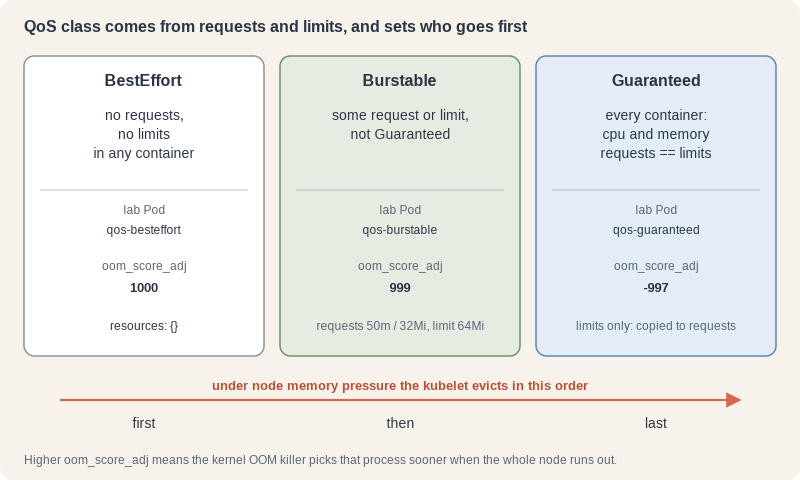
Kubernetes puts every Pod into one of three Quality of Service classes, computed from its requests and limits. You never set the class; you set resources and read the class from status.qosClass.
- Guaranteed: every container has CPU and memory requests and limits, and for each one request equals limit.
- Burstable: at least one container has a CPU or memory request or limit, and the Pod does not meet the Guaranteed rule.
- BestEffort: no container has any CPU or memory request or limit.
The class matters when a node runs short. Under node pressure the kubelet evicts BestEffort Pods first, then Burstable, then Guaranteed, and only Pods using more than their requests are candidates. If the kernel runs out of memory before the kubelet can act, the OOM killer decides, and the kubelet has already tilted its choice by setting an oom_score_adj per container: -997 for Guaranteed, 1000 for BestEffort, and a value between 2 and 999 for Burstable that is lower the more memory the container requests (node-pressure eviction). Higher means “kill me sooner”.
Try it: three classes and one Pod too big
- Save this as
qos.yaml. The third Pod sets only limits, so Kubernetes copies them into requests.
apiVersion: v1
kind: Pod
metadata:
  name: qos-besteffort
  namespace: k8s-from-zero
spec:
  containers:
    - name: app
      image: busybox:1.37
      command: ["sleep", "3600"]
---
apiVersion: v1
kind: Pod
metadata:
  name: qos-burstable
  namespace: k8s-from-zero
spec:
  containers:
    - name: app
      image: busybox:1.37
      command: ["sleep", "3600"]
      resources:
        requests:
          cpu: 50m
          memory: 32Mi
        limits:
          memory: 64Mi
---
apiVersion: v1
kind: Pod
metadata:
  name: qos-guaranteed
  namespace: k8s-from-zero
spec:
  containers:
    - name: app
      image: busybox:1.37
      command: ["sleep", "3600"]
      resources:
        # Only limits: Kubernetes copies them into requests, so requests == limits.
        limits:
          cpu: 100m
memory: 64Mi- Apply it and show class and resources side by side with custom columns (part 5):
kubectl apply -f qos.yaml
kubectl get pods -n k8s-from-zero -o custom-columns=NAME:.metadata.name,QOS:.status.qosClass,CPU_REQ:.spec.containers[0].resources.requests.cpu,CPU_LIM:.spec.containers[0].resources.limits.cpu,MEM_REQ:.spec.containers[0].resources.requests.memory,MEM_LIM:.spec.containers[0].resources.limits.memoryExplain this command
kubectl apply -f qos.yaml
kubectl get pods -n k8s-from-zero -o custom-columns=NAME:.metadata.name,QOS:.status.qosClass,CPU_REQ:.spec.containers[0].resources.requests.cpu,CPU_LIM:.spec.containers[0].resources.limits.cpu,MEM_REQ:.spec.containers[0].resources.requests.memory,MEM_LIM:.spec.containers[0].resources.limits.memorykubectlThe Kubernetes command-line client. Subcommands and flags are documented under kubernetes.io/docs/reference/kubectl/.applyApply a configuration to a resource by file name or stdin. The apply docs say the resource is created if it does not exist yet. JSON and YAML are accepted.-fShort form of --filename. The file, directory or URL that contains the configuration to apply.qos.yamlThe file named by --filename. apply creates the objects or updates them to match this file.kubectlThe Kubernetes command-line client. Subcommands and flags are documented under kubernetes.io/docs/reference/kubectl/.getDisplay one or many resources. kubectl get prints a table of the most important information about the resources you name.podsThe resource type to display. kubectl get points you to kubectl api-resources for the full list of types the server supports.-nShort form of --namespace. If present, the namespace scope for this CLI request.k8s-from-zeroThe namespace name passed to --namespace.-oShort form of --output. It selects the output format. For get, the formats include json, yaml, name, jsonpath, custom-columns and wide.custom-columns=NAME:.metadata.name,QOS:.status.qosClass,CPU_REQ:.spec.containers[0].resources.requests.cpu,CPU_LIM:.spec.containers[0].resources.limits.cpu,MEM_REQ:.spec.containers[0].resources.requests.memory,MEM_LIM:.spec.containers[0].resources.limits.memorycustom-columns is an output format. The get examples write each column as a heading, a colon, and a JSONPath. The headings here are NAME, QOS, CPU_REQ, CPU_LIM, MEM_REQ, MEM_LIM.
NAME             QOS          CPU_REQ   CPU_LIM   MEM_REQ   MEM_LIM
qos-besteffort   BestEffort   <none>    <none>    <none>    <none>
qos-burstable    Burstable    50m       <none>    32Mi      64Mi
qos-guaranteed   Guaranteed   100m      100m      64Mi      64Mi
The requests on qos-guaranteed were filled in from its limits. Now the OOM scores the kubelet set:
for p in qos-besteffort qos-burstable qos-guaranteed; do
  echo "$p $(kubectl exec -n k8s-from-zero $p -- cat /proc/1/oom_score_adj)"
doneExplain this command
for p in qos-besteffort qos-burstable qos-guaranteed; do
  echo "$p $(kubectl exec -n k8s-from-zero $p -- cat /proc/1/oom_score_adj)"
doneforShell. Starts a for loop.pAn argument of this command: p.inShell. Names the list a for loop walks.qos-besteffortAn argument of this command: qos-besteffort.qos-burstableAn argument of this command: qos-burstable.qos-guaranteedAn argument of this command: qos-guaranteed.;Shell. Runs the next command after this one finishes, whatever its exit status.doShell. Starts the body of a for, while or if.echoShell. Writes its arguments to standard output, then a newline."$p $(kubectl exec -n k8s-from-zero $p -- cat /proc/1/oom_score_adj)"A quoted argument in this command.doneShell. Ends a for, while or until loop.
qos-besteffort 1000
qos-burstable 999
qos-guaranteed -997- Ask for more than any node has. Save this as
too-big.yaml:
apiVersion: v1
kind: Pod
metadata:
  name: too-big
  namespace: k8s-from-zero
spec:
  containers:
    - name: app
      image: busybox:1.37
      command: ["sleep", "3600"]
      resources:
        requests:
          cpu: "64"
memory: 64Mikubectl apply -f too-big.yaml
kubectl get pod too-big -n k8s-from-zero
kubectl describe pod too-big -n k8s-from-zeroExplain this command
kubectl apply -f too-big.yaml
kubectl get pod too-big -n k8s-from-zero
kubectl describe pod too-big -n k8s-from-zerokubectlThe Kubernetes command-line client. Subcommands and flags are documented under kubernetes.io/docs/reference/kubectl/.applyApply a configuration to a resource by file name or stdin. The apply docs say the resource is created if it does not exist yet. JSON and YAML are accepted.-fShort form of --filename. The file, directory or URL that contains the configuration to apply.too-big.yamlThe file named by --filename. apply creates the objects or updates them to match this file.kubectlThe Kubernetes command-line client. Subcommands and flags are documented under kubernetes.io/docs/reference/kubectl/.getDisplay one or many resources. kubectl get prints a table of the most important information about the resources you name.podThe resource type to display. kubectl get points you to kubectl api-resources for the full list of types the server supports.too-bigThe object name.-nShort form of --namespace. If present, the namespace scope for this CLI request.k8s-from-zeroThe namespace name passed to --namespace.kubectlThe Kubernetes command-line client. Subcommands and flags are documented under kubernetes.io/docs/reference/kubectl/.describeShow details of a specific resource or group of resources. The describe docs say this includes related resources such as events or controllers.podThe resource type.too-bigThe object name.-nShort form of --namespace. If present, the namespace scope for this CLI request.k8s-from-zeroThe namespace name passed to --namespace.
NAME      READY   STATUS    RESTARTS   AGE
too-big   0/1     Pending   0          4s
...
  Warning  FailedScheduling  4s    default-scheduler  0/1 nodes are available: 1 Insufficient cpu. preemption: 0/1 nodes are available: 1 Preemption is not helpful for scheduling.
Pending with Insufficient cpu is the scheduler counting requests. The Pod will wait forever, or until a node with enough free allocatable CPU joins. Delete it and the QoS Pods:
kubectl delete pod too-big -n k8s-from-zero
kubectl delete -f qos.yamlExplain this command
kubectl delete pod too-big -n k8s-from-zero
kubectl delete -f qos.yamlkubectlThe Kubernetes command-line client. Subcommands and flags are documented under kubernetes.io/docs/reference/kubectl/.deleteDelete resources by file names, stdin, resources and names, or by resources and label selector.podThe resource type.too-bigThe object name.-nShort form of --namespace. If present, the namespace scope for this CLI request.k8s-from-zeroThe namespace name passed to --namespace.kubectlThe Kubernetes command-line client. Subcommands and flags are documented under kubernetes.io/docs/reference/kubectl/.deleteDelete resources by file names, stdin, resources and names, or by resources and label selector.-fShort form of --filename. For delete, the file that contains the resource to delete.qos.yamlThe file named by --filename. delete removes the resources that file describes.
Namespace guard rails: LimitRange and ResourceQuota
Remembering resources on every container is hard, and one team can still eat a whole cluster. Two namespace objects help (part 6 introduced namespaces):
- A LimitRange sets per-container defaults and bounds. Its admission controller fills in
defaultRequestanddefault(limit) for containers that set nothing, and rejects containers outsideminandmax. - A ResourceQuota caps the total for the whole namespace: summed requests and limits, number of Pods, and more. A request that would break the quota is rejected with HTTP 403 Forbidden. Once a quota covers CPU or memory, every new Pod must state them, which is why the two objects usually come together.
Try it: defaults and a budget for team-a
- Save this as
team-a.yaml:
apiVersion: v1
kind: Namespace
metadata:
  name: team-a
---
apiVersion: v1
kind: LimitRange
metadata:
  name: defaults
  namespace: team-a
spec:
  limits:
    - type: Container
      defaultRequest:
        cpu: 100m
        memory: 64Mi
      default:
        cpu: 200m
        memory: 128Mi
      max:
        cpu: "1"
        memory: 512Mi
---
apiVersion: v1
kind: ResourceQuota
metadata:
  name: team-a-quota
  namespace: team-a
spec:
  hard:
    requests.cpu: 300m
    requests.memory: 256Mi
    limits.cpu: 600m
    limits.memory: 512Mi
pods: "5"- Apply it and run a Pod that says nothing about resources. It gets the defaults, and an annotation records who set them:
kubectl apply -f team-a.yaml
kubectl run plain --image=busybox:1.37 -n team-a -- sleep 3600
kubectl get pod plain -n team-a -o jsonpath='{.spec.containers[0].resources}{"\n"}'
kubectl get pod plain -n team-a -o jsonpath='{.metadata.annotations}{"\n"}'Explain this command
kubectl apply -f team-a.yaml
kubectl run plain --image=busybox:1.37 -n team-a -- sleep 3600
kubectl get pod plain -n team-a -o jsonpath='{.spec.containers[0].resources}{"\n"}'
kubectl get pod plain -n team-a -o jsonpath='{.metadata.annotations}{"\n"}'kubectlThe Kubernetes command-line client. Subcommands and flags are documented under kubernetes.io/docs/reference/kubectl/.applyApply a configuration to a resource by file name or stdin. The apply docs say the resource is created if it does not exist yet. JSON and YAML are accepted.-fShort form of --filename. The file, directory or URL that contains the configuration to apply.team-a.yamlThe file named by --filename. apply creates the objects or updates them to match this file.kubectlThe Kubernetes command-line client. Subcommands and flags are documented under kubernetes.io/docs/reference/kubectl/.runCreate and run a particular image in a pod. The run synopsis is kubectl run NAME --image=image [--env="key=value"] [--port=port] [--dry-run=server|client] [--overrides=inline-json] [--command] -- [COMMAND] [args...].plainThe NAME in kubectl run NAME. This command names the Pod plain.--image=busybox:1.37The image for the container to run. This command passes busybox:1.37.-nShort form of --namespace. If present, the namespace scope for this CLI request.team-aThe namespace name passed to --namespace.--Ends kubectl's flags. The exec examples say to use two dashes so the command's own flags are read as that command's flags.sleepThe command run in the container, or a shell pause. It waits the given time.3600A numeric argument in this command.kubectlThe Kubernetes command-line client. Subcommands and flags are documented under kubernetes.io/docs/reference/kubectl/.getDisplay one or many resources. kubectl get prints a table of the most important information about the resources you name.podThe resource type to display. kubectl get points you to kubectl api-resources for the full list of types the server supports.plainThe object name.-nShort form of --namespace. If present, the namespace scope for this CLI request.team-aThe namespace name passed to --namespace.-oShort form of --output. It selects the output format. For get, the formats include json, yaml, name, jsonpath, custom-columns and wide.jsonpath='{.spec.containers[0].resources}{"\n"}'jsonpath is an output format. A template is JSONPath expressions in curly braces. The JSONPath page says a double-quoted string inserts text, and its example uses a quoted backslash-n for a newline. This token is the template in the lesson command.kubectlThe Kubernetes command-line client. Subcommands and flags are documented under kubernetes.io/docs/reference/kubectl/.getDisplay one or many resources. kubectl get prints a table of the most important information about the resources you name.podThe resource type to display. kubectl get points you to kubectl api-resources for the full list of types the server supports.plainThe object name.-nShort form of --namespace. If present, the namespace scope for this CLI request.team-aThe namespace name passed to --namespace.-oShort form of --output. It selects the output format. For get, the formats include json, yaml, name, jsonpath, custom-columns and wide.jsonpath='{.metadata.annotations}{"\n"}'jsonpath is an output format. A template is JSONPath expressions in curly braces. The JSONPath page says a double-quoted string inserts text, and its example uses a quoted backslash-n for a newline. This token is the template in the lesson command.
namespace/team-a created
limitrange/defaults created
resourcequota/team-a-quota created
pod/plain created
{"limits":{"cpu":"200m","memory":"128Mi"},"requests":{"cpu":"100m","memory":"64Mi"}}
{"kubernetes.io/limit-ranger":"LimitRanger plugin set: cpu, memory request for container plain; cpu, memory limit for container plain"}- Each default Pod requests 100m CPU, and the quota allows 300m. The fourth Pod is refused:
kubectl run second --image=busybox:1.37 -n team-a -- sleep 3600
kubectl run third --image=busybox:1.37 -n team-a -- sleep 3600
kubectl run fourth --image=busybox:1.37 -n team-a -- sleep 3600Explain this command
kubectl run second --image=busybox:1.37 -n team-a -- sleep 3600
kubectl run third --image=busybox:1.37 -n team-a -- sleep 3600
kubectl run fourth --image=busybox:1.37 -n team-a -- sleep 3600kubectlThe Kubernetes command-line client. Subcommands and flags are documented under kubernetes.io/docs/reference/kubectl/.runCreate and run a particular image in a pod. The run synopsis is kubectl run NAME --image=image [--env="key=value"] [--port=port] [--dry-run=server|client] [--overrides=inline-json] [--command] -- [COMMAND] [args...].secondThe NAME in kubectl run NAME. This command names the Pod second.--image=busybox:1.37The image for the container to run. This command passes busybox:1.37.-nShort form of --namespace. If present, the namespace scope for this CLI request.team-aThe namespace name passed to --namespace.--Ends kubectl's flags. The exec examples say to use two dashes so the command's own flags are read as that command's flags.sleepThe command run in the container, or a shell pause. It waits the given time.3600A numeric argument in this command.kubectlThe Kubernetes command-line client. Subcommands and flags are documented under kubernetes.io/docs/reference/kubectl/.runCreate and run a particular image in a pod. The run synopsis is kubectl run NAME --image=image [--env="key=value"] [--port=port] [--dry-run=server|client] [--overrides=inline-json] [--command] -- [COMMAND] [args...].thirdThe NAME in kubectl run NAME. This command names the Pod third.--image=busybox:1.37The image for the container to run. This command passes busybox:1.37.-nShort form of --namespace. If present, the namespace scope for this CLI request.team-aThe namespace name passed to --namespace.--Ends kubectl's flags. The exec examples say to use two dashes so the command's own flags are read as that command's flags.sleepThe command run in the container, or a shell pause. It waits the given time.3600A numeric argument in this command.kubectlThe Kubernetes command-line client. Subcommands and flags are documented under kubernetes.io/docs/reference/kubectl/.runCreate and run a particular image in a pod. The run synopsis is kubectl run NAME --image=image [--env="key=value"] [--port=port] [--dry-run=server|client] [--overrides=inline-json] [--command] -- [COMMAND] [args...].fourthThe NAME in kubectl run NAME. This command names the Pod fourth.--image=busybox:1.37The image for the container to run. This command passes busybox:1.37.-nShort form of --namespace. If present, the namespace scope for this CLI request.team-aThe namespace name passed to --namespace.--Ends kubectl's flags. The exec examples say to use two dashes so the command's own flags are read as that command's flags.sleepThe command run in the container, or a shell pause. It waits the given time.3600A numeric argument in this command.
pod/second created
pod/third created
Error from server (Forbidden): pods "fourth" is forbidden: exceeded quota: team-a-quota, requested: limits.cpu=200m,requests.cpu=100m, used: limits.cpu=600m,requests.cpu=300m, limited: limits.cpu=600m,requests.cpu=300m
describe shows the budget:
kubectl describe resourcequota team-a-quota -n team-aExplain this command
kubectl describe resourcequota team-a-quota -n team-akubectlThe Kubernetes command-line client. Subcommands and flags are documented under kubernetes.io/docs/reference/kubectl/.describeShow details of a specific resource or group of resources. The describe docs say this includes related resources such as events or controllers.resourcequotaThe resource type.team-a-quotaThe object name.-nShort form of --namespace. If present, the namespace scope for this CLI request.team-aThe namespace name passed to --namespace.
Name:            team-a-quota
Namespace:       team-a
Resource         Used   Hard
--------         ----   ----
limits.cpu       600m   600m
limits.memory    384Mi  512Mi
pods             3      5
requests.cpu     300m   300m
requests.memory 192Mi 256Mi- The LimitRange
maxrejects an oversized container outright:
kubectl run huge --image=busybox:1.37 -n team-a \
--overrides='{"spec":{"containers":[{"name":"huge","image":"busybox:1.37","args":["sleep","3600"],"resources":{"limits":{"cpu":"2","memory":"64Mi"}}}]}}'Explain this command
kubectl run huge --image=busybox:1.37 -n team-a \
--overrides='{"spec":{"containers":[{"name":"huge","image":"busybox:1.37","args":["sleep","3600"],"resources":{"limits":{"cpu":"2","memory":"64Mi"}}}]}}'kubectlThe Kubernetes command-line client. Subcommands and flags are documented under kubernetes.io/docs/reference/kubectl/.runCreate and run a particular image in a pod. The run synopsis is kubectl run NAME --image=image [--env="key=value"] [--port=port] [--dry-run=server|client] [--overrides=inline-json] [--command] -- [COMMAND] [args...].hugeThe NAME in kubectl run NAME. This command names the Pod huge.--image=busybox:1.37The image for the container to run. This command passes busybox:1.37.-nShort form of --namespace. If present, the namespace scope for this CLI request.team-aThe namespace name passed to --namespace.\Shell. Continues the command on the next line.--overrides='{"spec":{"containers":[{"name":"huge","image":"busybox:1.37","args":["sleep","3600"],"resources":{"limits":{"cpu":"2","memory":"64Mi"}}}]}}'An inline JSON override for the generated object. The run docs require a valid apiVersion when this is set. This command passes '{"spec":{"containers":[{"name":"huge","image":"busybox:1.37","args":["sleep","3600"],"resources":{"limits":{"cpu":"2","memory":"64Mi"}}}]}}'.
Error from server (Forbidden): pods "huge" is forbidden: maximum cpu usage per Container is 1, but limit is 2- The trap: a Deployment is not rejected, its Pods are. The Deployment is created, shows
0/3, and the reason is only in the ReplicaSet’s events:
kubectl create deployment burst --image=busybox:1.37 --replicas=3 -n team-a -- sleep 3600
kubectl get deployment burst -n team-a
kubectl describe replicaset -n team-a -l app=burstExplain this command
kubectl create deployment burst --image=busybox:1.37 --replicas=3 -n team-a -- sleep 3600
kubectl get deployment burst -n team-a
kubectl describe replicaset -n team-a -l app=burstkubectlThe Kubernetes command-line client. Subcommands and flags are documented under kubernetes.io/docs/reference/kubectl/.createCreate a resource from a file or from stdin, or through a subcommand such as namespace.deploymentThe resource type.burstThe object name.--image=busybox:1.37The image for the container to run. This command passes busybox:1.37.--replicas=3The number of desired replicas. This command passes 3.-nShort form of --namespace. If present, the namespace scope for this CLI request.team-aThe namespace name passed to --namespace.--Ends kubectl's flags. The exec examples say to use two dashes so the command's own flags are read as that command's flags.sleepThe command run in the container, or a shell pause. It waits the given time.3600A numeric argument in this command.kubectlThe Kubernetes command-line client. Subcommands and flags are documented under kubernetes.io/docs/reference/kubectl/.getDisplay one or many resources. kubectl get prints a table of the most important information about the resources you name.deploymentThe resource type to display. kubectl get points you to kubectl api-resources for the full list of types the server supports.burstThe object name.-nShort form of --namespace. If present, the namespace scope for this CLI request.team-aThe namespace name passed to --namespace.kubectlThe Kubernetes command-line client. Subcommands and flags are documented under kubernetes.io/docs/reference/kubectl/.describeShow details of a specific resource or group of resources. The describe docs say this includes related resources such as events or controllers.replicasetThe resource type.-nShort form of --namespace. If present, the namespace scope for this CLI request.team-aThe namespace name passed to --namespace.-lShort form of --selector. A label query. The get docs say it supports '=', '==', '!=', 'in' and 'notin', and that matching objects must satisfy every constraint.app=burstThe label query passed to --selector: app=burst.
deployment.apps/burst created
NAME    READY   UP-TO-DATE   AVAILABLE   AGE
burst   0/3     0            0           4s
...
  Warning  FailedCreate  4s    replicaset-controller  Error creating: pods "burst-6fc6868956-f4t68" is forbidden: exceeded quota: team-a-quota, requested: limits.cpu=200m,requests.cpu=100m, used: limits.cpu=600m,requests.cpu=300m, limited: limits.cpu=600m,requests.cpu=300m
...- Delete the namespace and everything in it:
kubectl delete namespace team-aExplain this command
kubectl delete namespace team-akubectlThe Kubernetes command-line client. Subcommands and flags are documented under kubernetes.io/docs/reference/kubectl/.deleteDelete resources by file names, stdin, resources and names, or by resources and label selector.namespaceThe resource type.team-aThe object name.
When it goes wrong
PendingwithInsufficient cpuorInsufficient memory. The requests do not fit any node. Lower the requests, free capacity, or add nodes. CheckAllocated resourcesinkubectl describe node; usage graphs will not explain it, because the scheduler counts requests.OOMKilledand a climbing restart count. The app needs more memory than its limit, or it leaks. ReadlastStatefor the reason and exit code 137, then either raise the limit (and probably the request) or fix the leak.- An app that is slow for no visible reason. A low CPU limit throttles it. Compare
nr_throttledandthrottled_usecin/sys/fs/cgroup/cpu.statover time. Raise the CPU limit if the app needs more, and keep the request honest so the scheduler still places it sensibly. kubectl topsayserror: Metrics API not available. That is what our kind cluster printed:topneeds a metrics add-on that kind does not install. Read the cgroup files as above for now; part 25 installs metrics-server.- A Deployment stuck at
0/Nin a namespace with a quota. Look at the ReplicaSet events forexceeded quota, or for an error about missing requests or limits if no LimitRange fills in defaults.
Cheat sheet
| Task | Command or field | Note |
|---|---|---|
| Reserve resources | resources.requests.cpu, .memory |
the scheduler counts these |
| Cap resources | resources.limits.cpu, .memory |
the kernel enforces these |
| Half a core | cpu: 500m |
1 is one core or vCPU |
| 64 mebibytes | memory: 64Mi |
64m would be millibytes |
| Node capacity and reservations | kubectl describe node <name> |
Allocatable and Allocated resources |
| See a Pod’s class | kubectl get pod <name> -o jsonpath='{.status.qosClass}' |
Guaranteed, Burstable, BestEffort |
| Make a Pod Guaranteed | requests == limits for cpu and memory, every container | limits alone are copied to requests |
| See CPU throttling | kubectl exec <pod> -- cat /sys/fs/cgroup/cpu.stat |
nr_throttled, throttled_usec |
| See the kernel limits | cat /sys/fs/cgroup/cpu.max and memory.max |
cgroup v2 nodes |
| Was it OOM-killed | kubectl describe pod <name> |
Reason: OOMKilled, Exit Code: 137 |
| Why Pending | kubectl describe pod <name> |
FailedScheduling ... Insufficient cpu |
| Namespace defaults | LimitRange with defaultRequest, default, max |
applied at admission |
| Namespace budget | ResourceQuota with requests.cpu, limits.memory, pods |
kubectl describe resourcequota |
| Quota blocked a Deployment | kubectl describe replicaset -l app=<name> |
look for exceeded quota |
apiVersion: v1
kind: Pod
metadata:
  name: sized
  namespace: k8s-from-zero
spec:
  containers:
    - name: app
      image: nginx:1.29-alpine
      resources:
        requests:
          cpu: 100m
          memory: 64Mi
        limits:
          cpu: 500m
          memory: 128Mi
Recap and what is next
- Requests are what the scheduler reserves; limits are what the kernel enforces through cgroups.
- At the limit, CPU is throttled and the container keeps running; memory gets the container OOM-killed with exit code 137.
- QoS classes come from requests and limits, and set eviction order and OOM scores: BestEffort first, Guaranteed last.
- LimitRange fills in defaults and enforces bounds per container; ResourceQuota caps a namespace’s total.
- Quota errors on a Deployment show up on its ReplicaSet, not on the Deployment.
Next: part 12, the first checkpoint lab, where you build a two-tier app with everything from parts 1 to 11 and grade it with a script. Coming tomorrow.
Command explanations and quoted passages in this lesson come from or adapt the kubectl reference and the Kubernetes documentation, © The Kubernetes Authors, licensed under CC BY 4.0. We shortened and edited some passages. Kubernetes® is a registered trademark of The Linux Foundation. aitamer.news is not affiliated with or endorsed by The Linux Foundation or the CNCF.
The Campfire
CommentsThanks. Your comment is waiting for the desk. Once it is approved it appears here within about a minute.
Add a comment