
In part 2 you toured the control plane and the nodes and followed one kubectl apply until a container ran. So far we have used a cluster without asking how it got there. This part builds your permanent lab. By the end you will have kubectl and kind installed and checksum-verified, you will know when minikube, k3d or Docker Desktop is the better fit, you will run a three-node cluster from a config file, and you will understand kubeconfig and contexts, the files and names that decide which cluster each command hits. You need a Linux, macOS or Windows machine with Docker (or Podman) and a few GB of free memory.
What you will build
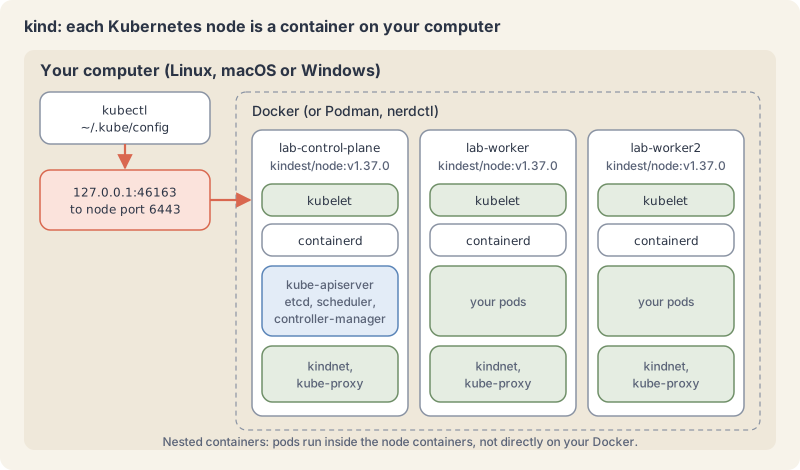
Two kind clusters side by side: first, a single node, and lab, with one control-plane node and two workers. You will switch between them, point a context at a default namespace, merge kubeconfig files, and then delete both cleanly. Remember the picture from part 2: a cluster is a control plane plus nodes. With kind, each of those nodes is simply a container on your computer, and the Pods run as containers inside it.
Four ways to run a learning cluster
You do not need a cloud account to learn Kubernetes. Four tools cover nearly every laptop:
- kind (Kubernetes in Docker) runs each node as a container on Docker, Podman or nerdctl, and bootstraps it with kubeadm, the upstream installer. It was built to test Kubernetes itself, starts in well under a minute, supports several nodes from a small config file, and picks the Kubernetes version by node image. This series uses it for every lab.
- minikube runs a cluster in a virtual machine, a container or directly on the host, depending on the driver you choose (Docker, KVM2, VirtualBox, QEMU, Hyper-V, VFkit and others). It asks for 2 CPUs, 2 GB of free memory and 20 GB of disk, supports several nodes with
--nodes, and has an add-on catalogue (minikube addons list). It is a good choice if you want a VM-based lab or its add-ons. - k3d runs k3s in Docker. k3s is a lightweight, fully compliant Kubernetes distribution in a single binary of under 100 MB, made for edge, home labs and CI. k3d is a community project, not an official Rancher (SUSE) product. Part 53 covers k3s.
- Docker Desktop has a built-in cluster you switch on in its settings. It offers two provisioners: kubeadm (one node, with the Kubernetes version set by Docker Desktop) and kind (several nodes, version of your choice). Check the licence first: Docker Desktop is free for personal use, education, non-commercial open source and small businesses (fewer than 250 employees and less than $10 million in annual revenue); professional use in larger organizations and government entities needs a paid subscription.
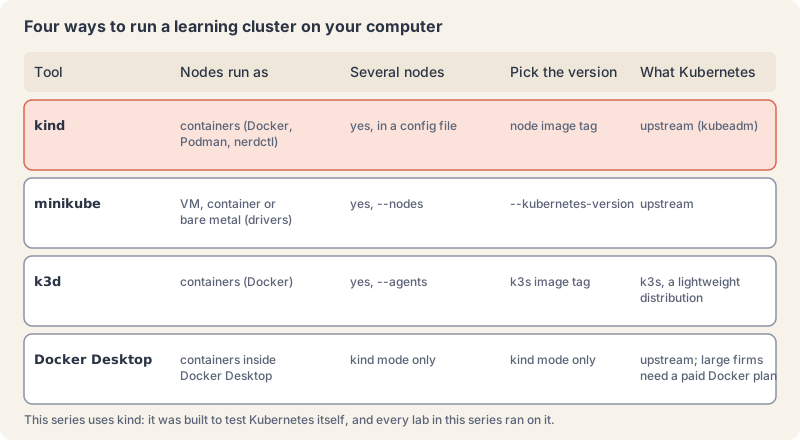
Every one of them gives you a real API server, so everything in this series works on any of them. The commands to create and delete clusters differ; kubectl and kubeconfig work the same way.
kubectl and the one-minor-version rule
kubectl is a single binary with no dependencies. The version skew policy says kubectl is supported within one minor version, older or newer, of the API server. kubectl 1.37 works with API servers 1.36, 1.37 and 1.38. When you upgrade clusters, upgrade kubectl too. kubectl version prints both versions.
kubeconfig: how kubectl knows where to go
A kubeconfig file tells kubectl how to reach clusters and how to log in to them (kubeconfig docs). The name is generic: the default file is $HOME/.kube/config. It holds three lists and one pointer:
clusters: a name, the API server address (server) and the certificate authority used to trust it.users: a name and the credentials, for kind a client certificate and key. In clouds this is usually a plugin that fetches a token, which the AKS and EKS arcs cover.contexts: a name that joins one cluster, one user and an optional default namespace.current-context: the context kubectl uses when you do not pass--context.
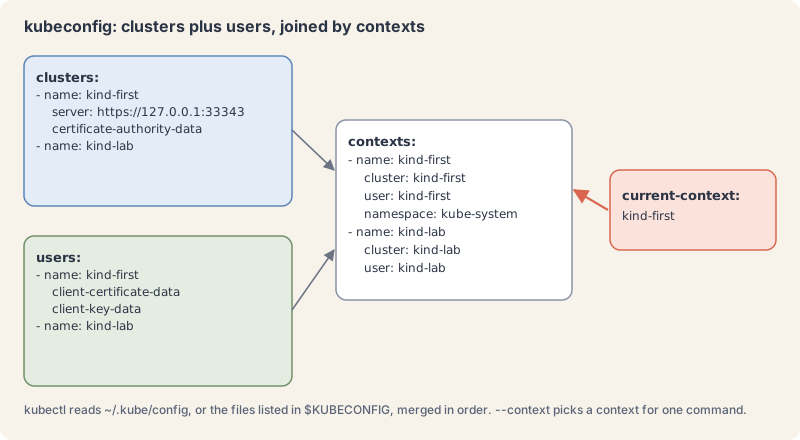
kubectl picks its configuration in this order: the --kubeconfig flag if you pass one, otherwise the files listed in the KUBECONFIG environment variable (colon-separated on Linux and macOS, semicolon on Windows) merged together, otherwise $HOME/.kube/config. When files are merged, the first file to set a value wins. kind create cluster adds its cluster, user and context to your kubeconfig and switches current-context to the new cluster; kind delete cluster removes them again.
Two safety notes. A kubeconfig is a credential: anyone with your kind file is admin on that cluster, so keep it private (chmod 600). And the Kubernetes docs warn to use kubeconfig files only from trusted sources, because a crafted file can run code on your machine; read an unknown one the way you would read a shell script.
Try it: build the lab
Every command ran on our box on 10 November 2026. Ports, IDs and timings will differ on yours.
1. Install kubectl and check its checksum. These are the official Linux steps for x86-64 (use arm64 in the URLs on ARM; on a Mac, brew install kubectl works):
curl -L -s https://dl.k8s.io/release/stable.txt; echo
curl -LO "https://dl.k8s.io/release/$(curl -L -s https://dl.k8s.io/release/stable.txt)/bin/linux/amd64/kubectl"
curl -LO "https://dl.k8s.io/release/$(curl -L -s https://dl.k8s.io/release/stable.txt)/bin/linux/amd64/kubectl.sha256"
echo "$(cat kubectl.sha256)  kubectl" | sha256sum --check
chmod +x kubectl && sudo mv kubectl /usr/local/bin/
kubectl version --client
v1.37.2
kubectl: OK
Client Version: v1.37.2
Kustomize Version: v5.8.1kubectl: OK means the binary matches the published checksum. If you see FAILED, download both files again.
2. Install kind and check its checksum. From the kind quick start, plus the checksum file from the v0.33.0 release (on a Mac, brew install kind):
[ $(uname -m) = x86_64 ] && curl -Lo ./kind https://kind.sigs.k8s.io/dl/v0.33.0/kind-linux-amd64
curl -Lo kind.sha256sum https://github.com/kubernetes-sigs/kind/releases/download/v0.33.0/kind-linux-amd64.sha256sum
echo "$(cut -d' ' -f1 kind.sha256sum)  kind" | sha256sum --check
chmod +x kind && sudo mv kind /usr/local/bin/
kind version
kind: OK
kind v0.33.0 go1.26.7 linux/amd643. Create your first cluster.
kind create cluster --name first
kubectl get nodes
Creating cluster "first" ...
...
Set kubectl context to "kind-first"
...
NAME STATUS ROLES AGE VERSION
first-control-plane NotReady control-plane 4s v1.37.0NotReady right after creation is normal: the network plugin is still starting. A few seconds later the node is Ready. Note the context name: kind prefixes the cluster name with kind-.
4. Create a three-node cluster from a config file. kind reads a small YAML file (kind configuration). Save this as kind-lab.yaml:
kind: Cluster
apiVersion: kind.x-k8s.io/v1alpha4
name: lab
nodes:
  - role: control-plane
  - role: worker
  - role: worker
kind create cluster --config kind-lab.yaml
kubectl get nodesCreating cluster "lab" ...
...
✓ Joining worker nodes 🚜
Set kubectl context to "kind-lab"
...
NAME STATUS ROLES AGE VERSION
lab-control-plane Ready control-plane 23s v1.37.0
lab-worker Ready <none> 13s v1.37.0
lab-worker2 Ready <none> 13s v1.37.0kind v0.33.0 defaults to Kubernetes v1.37.0. To pin a version, add --image with a node image from the release notes, which also list 1.36.4, 1.35.8 and 1.34.11. The notes ask you to use the full @sha256 digest to get an image built for that kind release:
kind create cluster --name pinned --image kindest/node:v1.37.0@sha256:a1ed56cfb0e7b93589bdf97c8cd566405a265939e3620fc4f5de89adff580ae5
kind delete cluster --name pinned
Creating cluster "pinned" ...
✓ Ensuring node image (kindest/node:v1.37.0) 🖼️
...
Set kubectl context to "kind-pinned"
...
Deleting cluster "pinned" ...
Deleted nodes: ["pinned-control-plane"]5. See that nodes are containers.
docker ps --format 'table {{.Names}}\t{{.Image}}\t{{.Ports}}'NAMES IMAGE PORTS
lab-worker kindest/node:v1.37.0
lab-control-plane kindest/node:v1.37.0 127.0.0.1:46163->6443/tcp
lab-worker2 kindest/node:v1.37.0
first-control-plane kindest/node:v1.37.0 127.0.0.1:33343->6443/tcp
...Only the control-plane containers publish a port: the API server’s 6443, mapped to a random port on 127.0.0.1. Inside a worker, containerd runs that node’s system Pods:
docker exec lab-worker crictl psCONTAINER IMAGE CREATED STATE NAME ATTEMPT POD ID POD NAMESPACE
61acf40edfc3a 4626fe10df5b9 11 seconds ago Running kindnet-cni 0 fce9468a46c4f kindnet-8bxs7 kube-system
c4e84dd24d968 d6a28daf3e6b0 11 seconds ago Running kube-proxy 0 eeddac91691b2 kube-proxy-9h6c7 kube-systemkind get clusters lists your clusters and kind get nodes --name lab lists one cluster’s node containers.
6. Read your kubeconfig through kubectl. You now have two contexts; the star marks the current one:
kubectl config get-contextsCURRENT NAME CLUSTER AUTHINFO NAMESPACE
kind-first kind-first kind-first
* kind-lab kind-lab kind-labSwitch, or target a cluster for one command only:
kubectl config use-context kind-first
kubectl get nodes
kubectl get nodes --context kind-lab
Switched to context "kind-first".
NAME STATUS ROLES AGE VERSION
first-control-plane Ready control-plane 13m v1.37.0
NAME STATUS ROLES AGE VERSION
lab-control-plane Ready control-plane 23s v1.37.0
lab-worker Ready <none> 13s v1.37.0
lab-worker2 Ready <none> 13s v1.37.0--minify shows only what the current context uses. kubectl hides the certificate data unless you add --raw, so this is safe to paste into a ticket:
kubectl config view --minifyapiVersion: v1
clusters:
- cluster:
certificate-authority-data: DATA+OMITTED
server: https://127.0.0.1:33343
name: kind-first
contexts:
- context:
cluster: kind-first
user: kind-first
name: kind-first
current-context: kind-first
kind: Config
users:
- name: kind-first
user:
client-certificate-data: DATA+OMITTED
client-key-data: DATA+OMITTED7. Give a context a default namespace. Commands without -n then go to that namespace. Here we point it at kube-system to make the effect visible, then set it back:
kubectl config set-context --current --namespace=kube-system
kubectl get pods
kubectl config set-context --current --namespace=default
kubectl get pods
Context "kind-first" modified.
NAME READY STATUS RESTARTS AGE
coredns-559f6c778d-7nsb2 1/1 Running 0 13m
...
kube-scheduler-first-control-plane 1/1 Running 0 13m
Context "kind-first" modified.
No resources found in default namespace.8. Keep clusters in separate files and merge them on demand. kind get kubeconfig prints one cluster’s kubeconfig. With KUBECONFIG listing several files, kubectl sees them as one:
kind get kubeconfig --name first > first.kubeconfig
kind get kubeconfig --name lab > lab.kubeconfig
chmod 600 first.kubeconfig lab.kubeconfig
KUBECONFIG=first.kubeconfig:lab.kubeconfig kubectl config get-contexts
CURRENT NAME CLUSTER AUTHINFO NAMESPACE
* kind-first kind-first kind-first
kind-lab kind-lab kind-labThe first file set current-context, so it wins. To save a merged copy as one file, add kubectl config view --flatten > merged.kubeconfig. Separate files per cluster are a good habit: a shell that only has KUBECONFIG=lab.kubeconfig cannot touch any other cluster by mistake.
9. Delete the clusters.
kind delete cluster --name lab
kind delete cluster --name first
kubectl config get-contexts
Deleting cluster "lab" ...
Deleted nodes: ["lab-worker" "lab-control-plane" "lab-worker2"]
Deleting cluster "first" ...
Deleted nodes: ["first-control-plane"]
CURRENT NAME CLUSTER AUTHINFO NAMESPACEkind removed both contexts from your kubeconfig. Deleting a cluster that does not exist is not an error, so cleanup scripts can run it safely.
For the rest of the series, keep one cluster around: kind create cluster --name k8s-from-zero (or the three-node config, if your machine has the memory).
On our box we ran everything with a separate KUBECONFIG file, because other clusters share that machine. Docker there runs without iptables, so we also added the control-plane name to the workers’ /etc/hosts and allowed bridge traffic between node containers before the three-node cluster could join. A normal Docker or Podman install needs none of this.
When it goes wrong
A multi-node cluster fails at “Preparing nodes”. Our first three-node attempt stopped with:
 ✗ Preparing nodes 📦 📦 📦
Deleted nodes: ["lab-control-plane" "lab-worker2" "lab-worker"]
ERROR: failed to create cluster: could not find a log line that matches "Reached target .*Multi-User System.*|detected cgroup v1"
The kind known issues page explains it: Linux limits on inotify instances and watches (on Ubuntu 128 and 8192 by default) are too low for many nodes. Raise them, then create the cluster again:
sudo sysctl fs.inotify.max_user_instances=512
sudo sysctl fs.inotify.max_user_watches=524288
The connection to the server 127.0.0.1:46163 was refused. kubectl points at a cluster that is not running, usually a kubeconfig file or context that outlived its cluster. We got this from the saved lab.kubeconfig after deleting lab. Check kubectl config current-context, then switch context or recreate the cluster.
The connection to the server localhost:8080 was refused. kubectl found no current context at all, so it fell back to localhost:8080. After we deleted both clusters, kubectl config current-context said error: current-context is not set. Create a cluster, or run kubectl config use-context <name>.
A command went to the wrong cluster. This is the most expensive mistake in this list, and kubectl will not warn you. Before any change, run kubectl config current-context; pass --context in scripts; and keep production credentials in a separate kubeconfig that is not in your default KUBECONFIG. Part 23 covers tools for switching contexts and namespaces safely.
kubectl and the cluster are too far apart. If kubectl version shows a client more than one minor version away from the server, some commands may misbehave. Install a kubectl that matches, per the version skew policy.
Cheat sheet
| Task | Command or field | Note |
|---|---|---|
| Latest stable kubectl version | curl -L -s https://dl.k8s.io/release/stable.txt |
v1.37.2 on 10 Nov 2026 |
| Verify a download | echo "$(cat kubectl.sha256) kubectl" | sha256sum --check |
must print OK |
| Client and server versions | kubectl version |
keep within one minor version |
| Create a cluster | kind create cluster --name <name> |
context is kind-<name> |
| Multi-node cluster | kind create cluster --config kind-lab.yaml |
roles: control-plane, worker |
| Pin the Kubernetes version | --image kindest/node:v1.37.0@sha256:... |
digests are in the kind release notes |
| List clusters and nodes | kind get clusters, kind get nodes --name <name> |
nodes are Docker containers |
| Delete a cluster | kind delete cluster --name <name> |
also removes its context |
| List contexts | kubectl config get-contexts |
* marks the current one |
| Show the current context | kubectl config current-context |
run it before every change |
| Switch context | kubectl config use-context kind-lab |
changes the kubeconfig file |
| One command, other cluster | kubectl get nodes --context kind-lab |
safest in scripts |
| Default namespace for a context | kubectl config set-context --current --namespace=<ns> |
applies to commands without -n |
| Show config without secrets | kubectl config view --minify |
--raw would print the keys |
| One cluster’s kubeconfig | kind get kubeconfig --name lab > lab.kubeconfig |
then chmod 600 |
| Merge files | KUBECONFIG=a.kubeconfig:b.kubeconfig kubectl config view --flatten |
first file wins on conflicts |
# kind-lab.yaml: one control plane, two workers
kind: Cluster
apiVersion: kind.x-k8s.io/v1alpha4
name: lab
nodes:
  - role: control-plane
  - role: worker
  - role: worker
Recap and what is next
- kind runs each Kubernetes node as a container and bootstraps it with kubeadm; it is the lab for this series. minikube, k3d and Docker Desktop are good alternatives with different trade-offs.
- Install kubectl and kind from the official URLs and check their checksums; keep kubectl within one minor version of your clusters.
- A kubeconfig holds clusters, users and contexts;
current-contextdecides where commands go, and--contextoverrides it for one command. KUBECONFIGcan list several files, which kubectl merges; separate files per cluster limit mistakes.- Errors like
connection refusedusually mean a stale context, not a broken cluster.
Next: part 4, your first Pod, where you write a Pod manifest by hand and inspect it with get, describe, logs, exec and port-forward. Coming tomorrow.
The Campfire
CommentsThanks. Your comment is waiting for the desk. Once it is approved it appears here within about a minute.
Add a comment