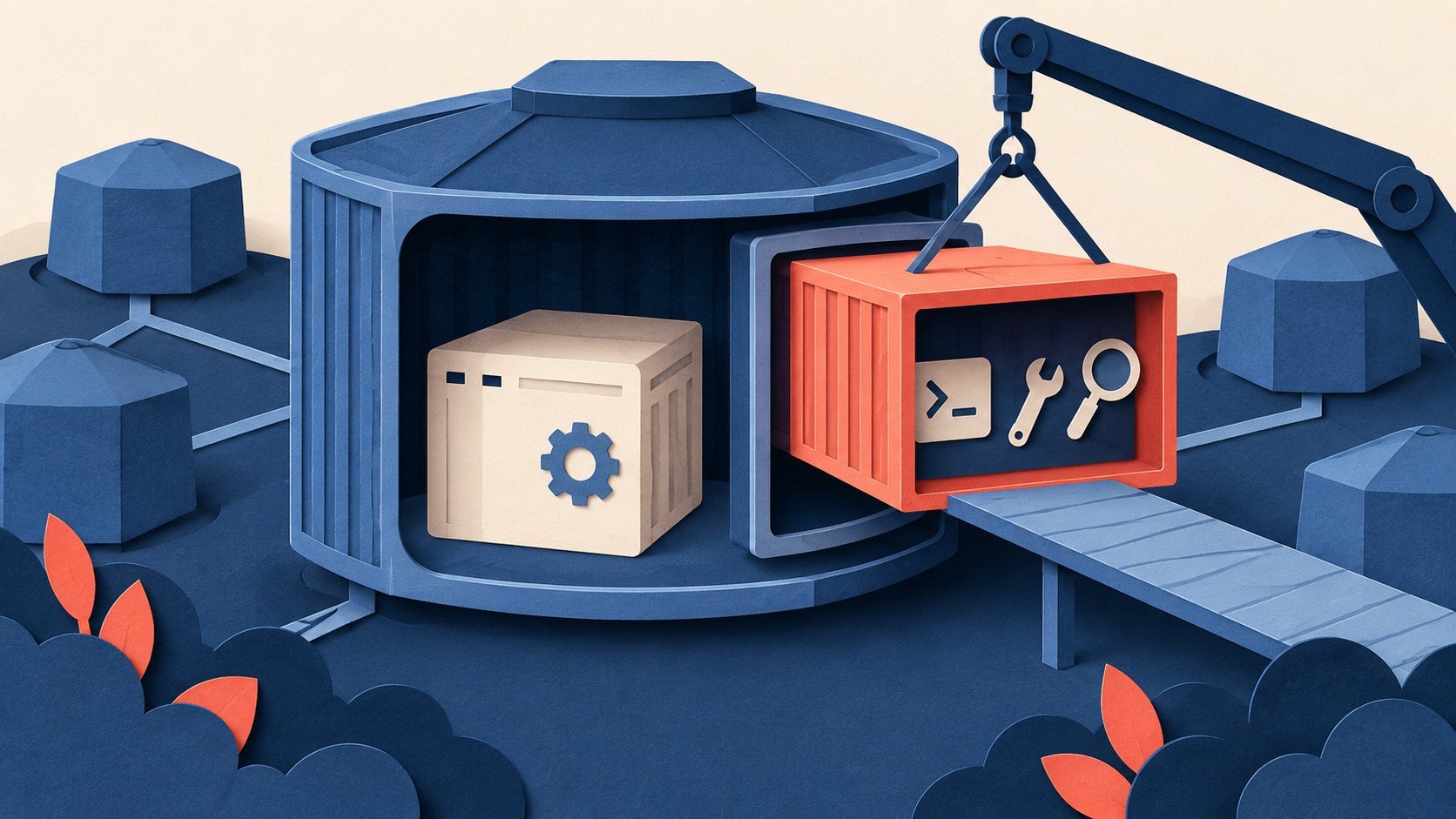
A pod is running, but its application image has no shell. kubectl exec cannot open one, and the tools you need are absent. Kubernetes provides an ephemeral container for this case. It runs temporarily inside the existing pod so you can inspect it.
How it helps
The debug container uses an image that contains the tools you need. You add it to the running pod with kubectl debug; you do not need to rebuild the application image to get a shell. Kubernetes specifically recommends ephemeral containers when kubectl exec is insufficient because an image lacks debugging utilities or a container has crashed. Its debugging guide shows the command and how to attach to the new container.
The --target option aims the debug container at the application container’s process namespace. That can let you inspect its processes. This depends on container runtime support. If the runtime cannot provide that access, the debug container may fail to start or may see only its own processes. A missing process in ps therefore needs investigation before you treat it as evidence that the application stopped.
What stays behind
“Ephemeral” describes the container’s job, not a removable change to the pod. Kubernetes does not automatically restart the container, and you cannot change or remove its entry after adding it. It also cannot declare ports, probes, or resource allocations. Those limits make it a troubleshooting tool, not a way to extend an application’s normal operation. The ephemeral container overview documents these constraints.
What to do
- Identify the pod and the application container you need to inspect. Choose a debug image with the required utilities and a suitable security profile.
- Follow the Kubernetes example with your own names and image:
kubectl debug -it <pod> --image=<debug-image> --target=<app-container> --profile=general. - Run the inspection commands inside the attached debug container. If target processes are absent, check whether the runtime supports
--target. - Use
kubectl describe pod <pod>to inspect the added container’s state. Record what you found before leaving the session; the container will not restart automatically.
The Campfire
No commentsNobody has pulled up a log by this one yet. Be the first to say what you make of it.
Held for the desk. It appears after a look.