
In part 4 you wrote a Pod by hand and looked inside it. This episode is about the tool you used to do it. kubectl has dozens of commands, and a handful of habits carry most of the daily work: knowing when to type a command and when to keep a file, generating YAML instead of writing it from memory, previewing a change before you make it, shaping output so you see only what you need, and picking objects by label. You need the kind cluster and the k8s-from-zero namespace from part 4. We tested on kind v0.33.0 (node image v1.37.0) with kubectl v1.37.2.
What you will build
You will create a Pod three different ways, turn a one-line command into a manifest, change that manifest safely with diff and apply, then run four labelled Pods and query them with selectors. Along the way you will see the three ways the Kubernetes docs say you can manage objects.
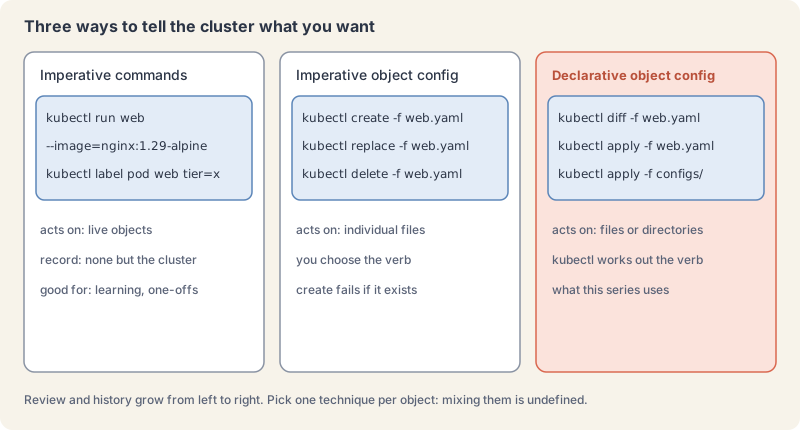
Three ways to tell the cluster what you want
The object management page names three techniques.
Imperative commands act on live objects with flags: kubectl run, kubectl create deployment, kubectl label. They are fast and good for learning and one-off tasks. They leave no file behind, so there is nothing to review, nothing in Git and no record except the cluster itself.
Imperative object configuration uses a file and a verb you choose: kubectl create -f, kubectl replace -f, kubectl delete -f. You get a file you can review, but you must pick the right verb. create fails if the object exists, and replace overwrites the whole object with your file, dropping anything that was set elsewhere.
Declarative object configuration uses kubectl apply -f on files or whole directories. You describe what you want and kubectl works out whether to create or patch each object. Pair it with kubectl diff to see the change first. This is how the rest of the series works, and how most teams work, because the files can live in Git.
The docs add one firm rule: manage each object with only one technique. Mixing them on the same object gives results the docs call undefined. You will see a mild version of that problem in the lab.
kubectl turns every command into an API request
kubectl itself stores nothing. Every command becomes one or more HTTPS requests to the kube-apiserver, the front door of the control plane from part 2. The syntax is always kubectl [command] [TYPE] [NAME] [flags], where TYPE can be singular, plural or a short name (pod, pods, po).
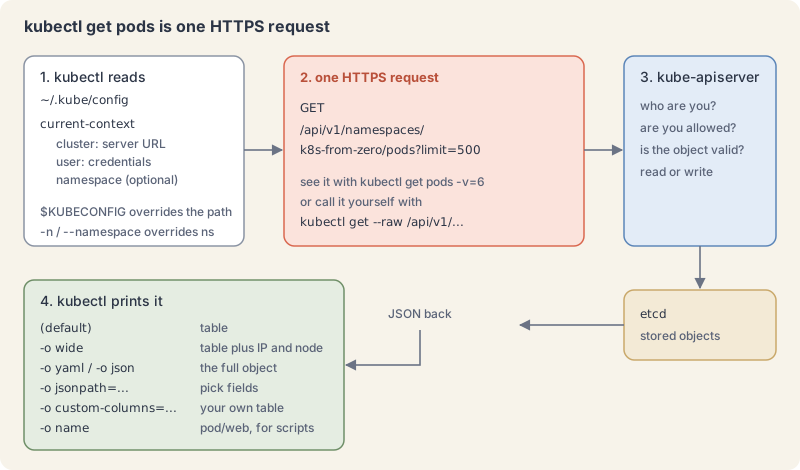
You can watch it happen. -v=6 raises kubectl’s log level enough to print each request:
kubectl get pods -n k8s-from-zero -v=6 2>&1 | grep -E "Config loaded|https://"Explain this command
kubectl get pods -n k8s-from-zero -v=6 2>&1 | grep -E "Config loaded|https://"kubectlThe Kubernetes command-line client. Subcommands and flags are documented under kubernetes.io/docs/reference/kubectl/.getDisplay one or many resources. kubectl get prints a table of the most important information about the resources you name.podsThe resource type to display. kubectl get points you to kubectl api-resources for the full list of types the server supports.-nShort form of --namespace. If present, the namespace scope for this CLI request.k8s-from-zeroThe namespace name passed to --namespace.-v=6Sets kubectl's log level. The quick reference says level 6 displays requested resources. The same table says level 8 displays HTTP request contents.2>&1Shell. Sends standard error to the same place as standard output, so the next command can read kubectl's log lines.|Shell. Sends the previous command's standard output to the next command.grepShell. Prints input lines that match a pattern.-EShort form of --extended-regexp. grep treats the pattern as an extended regular expression."Config loaded|https://"The pattern grep looks for. The lesson keeps the line that names the loaded kubeconfig and the line that shows the https request.
I1110 22:10:09.886728 2132505 loader.go:408] Config loaded from file:  /home/you/.kube/config
I1110 22:10:09.895705 2132505 round_trippers.go:632] "Response" verb="GET" url="https://127.0.0.1:35185/api/v1/namespaces/k8s-from-zero/pods?limit=500" status="200 OK" milliseconds=5
Our lab used its own kubeconfig file through the KUBECONFIG variable; yours will normally say ~/.kube/config. The URL path is the API: core objects live under /api/v1, and everything else under /apis/<group>/<version>, such as /apis/apps/v1 for Deployments. You can call a path yourself:
kubectl get --raw /api/v1/namespaces/k8s-from-zero | head -c 160; echoExplain this command
kubectl get --raw /api/v1/namespaces/k8s-from-zero | head -c 160; echokubectlThe Kubernetes command-line client. Subcommands and flags are documented under kubernetes.io/docs/reference/kubectl/.getDisplay one or many resources. kubectl get prints a table of the most important information about the resources you name.--rawRaw URI to request from the server. Uses the transport specified by the kubeconfig file./api/v1/namespaces/k8s-from-zeroThe URI passed to --raw. The lesson says core objects live under /api/v1, and this path is the k8s-from-zero namespace.|Shell. Sends the previous command's standard output to the next command.headShell. Prints the beginning of its input.-cWith head, how many bytes to print from the start of the input.160How many bytes head prints. The lesson keeps the first 160 bytes of the API reply.;Shell. Runs the next command after this one finishes, whatever its exit status.echoShell. Writes its arguments to standard output, then a newline.
{"kind":"Namespace","apiVersion":"v1","metadata":{"name":"k8s-from-zero","uid":"fb180b1a-60a8-4ba0-8019-0c49aaef7972","resourceVersion":"537","creationTimestampTo see every type the cluster knows, with short names and API versions:
kubectl api-resources | grep -E "^NAME|^pods |^namespaces |^deployments "Explain this command
kubectl api-resources | grep -E "^NAME|^pods |^namespaces |^deployments "kubectlThe Kubernetes command-line client. Subcommands and flags are documented under kubernetes.io/docs/reference/kubectl/.api-resourcesPrint the supported API resources on the server.|Shell. Sends the previous command's standard output to the next command.grepShell. Prints input lines that match a pattern.-EShort form of --extended-regexp. grep treats the pattern as an extended regular expression."^NAME|^pods |^namespaces |^deployments "The extended regular expression. It keeps the header row and the pods, namespaces and deployments rows.
NAME                                SHORTNAMES   APIVERSION                        NAMESPACED   KIND
namespaces                          ns           v1                                false        Namespace
pods                                po           v1                                true         Pod
deployments                         deploy       apps/v1                           true         Deployment
Try it: generate, preview, change and query
- An imperative Pod. One command, no file.
kubectl run quick --image=nginx:1.29-alpine -n k8s-from-zeroExplain this command
kubectl run quick --image=nginx:1.29-alpine -n k8s-from-zerokubectlThe Kubernetes command-line client. Subcommands and flags are documented under kubernetes.io/docs/reference/kubectl/.runCreate and run a particular image in a pod. The run synopsis is kubectl run NAME --image=image [--env="key=value"] [--port=port] [--dry-run=server|client] [--overrides=inline-json] [--command] -- [COMMAND] [args...].quickThe Pod name. The lesson creates it with kubectl run and later deletes it.--image=nginx:1.29-alpineThe image for the container to run. The lesson pins the tag nginx:1.29-alpine.-nShort form of --namespace. If present, the namespace scope for this CLI request.k8s-from-zeroThe namespace name passed to --namespace.
pod/quick created- Generate YAML with a client dry-run.
--dry-run=clientbuilds the object locally and sends nothing;-o yamlprints it. This is the fastest way to start a manifest with correct field names.
kubectl run web --image=nginx:1.29-alpine --port=80 --labels=app.kubernetes.io/name=web,tier=frontend -n k8s-from-zero --dry-run=client -o yamlExplain this command
kubectl run web --image=nginx:1.29-alpine --port=80 --labels=app.kubernetes.io/name=web,tier=frontend -n k8s-from-zero --dry-run=client -o yamlkubectlThe Kubernetes command-line client. Subcommands and flags are documented under kubernetes.io/docs/reference/kubectl/.runCreate and run a particular image in a pod. The run synopsis is kubectl run NAME --image=image [--env="key=value"] [--port=port] [--dry-run=server|client] [--overrides=inline-json] [--command] -- [COMMAND] [args...].webThe NAME in kubectl run NAME. This command names the Pod web.--image=nginx:1.29-alpineThe image for the container to run. The lesson pins the tag nginx:1.29-alpine.--port=80The port that this container exposes. The run docs describe --port that way.--labels=app.kubernetes.io/name=web,tier=frontendComma-separated labels to apply to the pod. The run docs say this flag overrides previous values. The lesson sets app.kubernetes.io/name to web and tier to frontend.-nShort form of --namespace. If present, the namespace scope for this CLI request.k8s-from-zeroThe namespace name passed to --namespace.--dry-run=clientA dry run. The run docs say --dry-run must be none, server, or client. Client only prints the object that would be sent, without sending it. The lesson uses client dry-run to write YAML.-oShort form of --output. It selects the output format. For get, the formats include json, yaml, name, jsonpath, custom-columns and wide.yamlAn output format. It prints the object as YAML.
apiVersion: v1
kind: Pod
metadata:
  labels:
    app.kubernetes.io/name: web
    tier: frontend
  name: web
  namespace: k8s-from-zero
spec:
  containers:
  - image: nginx:1.29-alpine
    name: web
    ports:
    - containerPort: 80
    resources: {}
  dnsPolicy: ClusterFirst
  restartPolicy: Always
status: {}
Redirect it into a file with > web.yaml. The generated file has a few things you can delete (resources: {}, status: {}) and uses a more compact list indent than our house style; both forms are valid YAML.
- Apply it, then apply it again.
applyis idempotent: the second run changes nothing.
kubectl apply -f web.yaml
kubectl apply -f web.yamlExplain this command
kubectl apply -f web.yaml
kubectl apply -f web.yamlkubectlThe Kubernetes command-line client. Subcommands and flags are documented under kubernetes.io/docs/reference/kubectl/.applyApply a configuration to a resource by file name or stdin. The apply docs say the resource is created if it does not exist yet. JSON and YAML are accepted.-fShort form of --filename. The file, directory or URL that contains the configuration to apply.web.yamlThe file named by --filename. The lesson generates it with kubectl run web and a client dry-run, then applies it.kubectlThe Kubernetes command-line client. Subcommands and flags are documented under kubernetes.io/docs/reference/kubectl/.applyApply a configuration to a resource by file name or stdin. The apply docs say the resource is created if it does not exist yet. JSON and YAML are accepted.-fShort form of --filename. The file, directory or URL that contains the configuration to apply.web.yamlThe file named by --filename. The lesson generates it with kubectl run web and a client dry-run, then applies it.
pod/web created
pod/web unchanged- Preview a change with diff. Add the label
environment: devunderlabelsinweb.yaml, then ask kubectl what would change:
kubectl diff -f web.yamlExplain this command
kubectl diff -f web.yamlkubectlThe Kubernetes command-line client. Subcommands and flags are documented under kubernetes.io/docs/reference/kubectl/.diffDiff the live object against the configuration apply would produce. The diff docs say the output is YAML. Exit status 0 means no differences, 1 means differences, and a higher status means kubectl or diff failed.-fShort form of --filename. For diff, the file, directory or URL that contains the configuration to diff.web.yamlThe file named by --filename. The lesson generates it with kubectl run web and a client dry-run, then applies it.
diff -u -N /tmp/LIVE-3340686275/v1.Pod.k8s-from-zero.web /tmp/MERGED-2442097470/v1.Pod.k8s-from-zero.web
--- /tmp/LIVE-3340686275/v1.Pod.k8s-from-zero.web	2026-11-10 22:09:48.712144688 +0200
+++ /tmp/MERGED-2442097470/v1.Pod.k8s-from-zero.web	2026-11-10 22:09:48.712144688 +0200
@@ -8,6 +8,7 @@
   generation: 1
   labels:
     app.kubernetes.io/name: web
+    environment: dev
     tier: frontend
   name: web
   namespace: k8s-from-zero
diff asks the server what the merged object would look like, so it also catches defaults and validation. Its exit code is useful in scripts: 0 means no differences, 1 means differences, and more than 1 means an error. We checked both: 0 before the edit, 1 after it. Now apply for real:
kubectl apply -f web.yamlExplain this command
kubectl apply -f web.yamlkubectlThe Kubernetes command-line client. Subcommands and flags are documented under kubernetes.io/docs/reference/kubectl/.applyApply a configuration to a resource by file name or stdin. The apply docs say the resource is created if it does not exist yet. JSON and YAML are accepted.-fShort form of --filename. The file, directory or URL that contains the configuration to apply.web.yamlThe file named by --filename. The lesson generates it with kubectl run web and a client dry-run, then applies it.
pod/web configuredapply remembers what you applied last in an annotation, kubectl.kubernetes.io/last-applied-configuration, so next time it knows which fields belong to your file:
kubectl get pod web -n k8s-from-zero -o jsonpath="{.metadata.annotations}" | head -c 120; echoExplain this command
kubectl get pod web -n k8s-from-zero -o jsonpath="{.metadata.annotations}" | head -c 120; echokubectlThe Kubernetes command-line client. Subcommands and flags are documented under kubernetes.io/docs/reference/kubectl/.getDisplay one or many resources. kubectl get prints a table of the most important information about the resources you name.podThe resource type to display. kubectl get points you to kubectl api-resources for the full list of types the server supports.webThe Pod name in this command.-nShort form of --namespace. If present, the namespace scope for this CLI request.k8s-from-zeroThe namespace name passed to --namespace.-oShort form of --output. It selects the output format. For get, the formats include json, yaml, name, jsonpath, custom-columns and wide.jsonpath="{.metadata.annotations}"jsonpath is an output format. A template is JSONPath expressions in curly braces. The JSONPath page says a double-quoted string inserts text, and its example uses a quoted backslash-n for a newline. This token is the template in the lesson command.|Shell. Sends the previous command's standard output to the next command.headShell. Prints the beginning of its input.-cWith head, how many bytes to print from the start of the input.120How many bytes head prints. The lesson keeps the first 120 bytes of the annotation JSON.;Shell. Runs the next command after this one finishes, whatever its exit status.echoShell. Writes its arguments to standard output, then a newline.
{"kubectl.kubernetes.io/last-applied-configuration":"{\"apiVersion\":\"v1\",\"kind\":\"Pod\",\"metadata\":{\"annotations\":{},- A server dry-run.
--dry-run=serversends the request through the API server’s full validation and admission checks but stores nothing. Use it when you want the cluster’s opinion without the change.
kubectl apply -f web.yaml --dry-run=server
kubectl delete pod quick -n k8s-from-zero --dry-run=clientExplain this command
kubectl apply -f web.yaml --dry-run=server
kubectl delete pod quick -n k8s-from-zero --dry-run=clientkubectlThe Kubernetes command-line client. Subcommands and flags are documented under kubernetes.io/docs/reference/kubectl/.applyApply a configuration to a resource by file name or stdin. The apply docs say the resource is created if it does not exist yet. JSON and YAML are accepted.-fShort form of --filename. The file, directory or URL that contains the configuration to apply.web.yamlThe file named by --filename. The lesson generates it with kubectl run web and a client dry-run, then applies it.--dry-run=serverA dry run. The run docs say server submits the request without persisting the resource. The lesson says a server dry-run still runs the API server validation and admission checks.kubectlThe Kubernetes command-line client. Subcommands and flags are documented under kubernetes.io/docs/reference/kubectl/.deleteDelete resources by file names, stdin, resources and names, or by resources and label selector.podThe resource type.quickThe Pod name. The lesson creates it with kubectl run and later deletes it.-nShort form of --namespace. If present, the namespace scope for this CLI request.k8s-from-zeroThe namespace name passed to --namespace.--dry-run=clientA dry run. The delete docs say --dry-run must be none, server, or client. Client only prints the object that would be sent, without sending it. Here the lesson prints pod "quick" deleted from k8s-from-zero namespace (dry run), and quick keeps running.
pod/web unchanged (server dry run)
pod "quick" deleted from k8s-from-zero namespace (dry run)- Read the schema with explain.
kubectl explainprints the documentation for any field, straight from the API schema of your cluster version:
kubectl explain pod.spec.containers.imagePullPolicyExplain this command
kubectl explain pod.spec.containers.imagePullPolicykubectlThe Kubernetes command-line client. Subcommands and flags are documented under kubernetes.io/docs/reference/kubectl/.explainGet documentation for a resource or a field. The explain docs say fields are named as TYPE.FIELDNAME.FIELDNAME and the text comes from the API server OpenAPI schema.pod.spec.containers.imagePullPolicyThe field path passed to explain. The lesson reads imagePullPolicy on a container, and the output lists Always, IfNotPresent and Never.
KIND:       Pod
VERSION:    v1

FIELD: imagePullPolicy <string>
ENUM:
    Always
    IfNotPresent
    Never

DESCRIPTION:
    Image pull policy. One of Always, Never, IfNotPresent. Defaults to Always if
    :latest tag is specified, or IfNotPresent otherwise. Cannot be updated.
...
Walk down any path with dots: kubectl explain pod.spec, kubectl explain pod.metadata.labels.
- Edit a live object.
kubectl edit pod web -n k8s-from-zeroopens the live object in your editor (set byKUBE_EDITORorEDITOR) and saves it back when you close the file. In our automated lab we usedsedas the editor to changeenvironment: devtoenvironment: test:
KUBE_EDITOR="sed -i s/environment:\ dev/environment:\ test/" kubectl edit pod web -n k8s-from-zero
kubectl get pod web -n k8s-from-zero -L environmentExplain this command
KUBE_EDITOR="sed -i s/environment:\ dev/environment:\ test/" kubectl edit pod web -n k8s-from-zero
kubectl get pod web -n k8s-from-zero -L environment
KUBE_EDITOR="sed -i s/environment:\ dev/environment:\ test/"Sets KUBE_EDITOR for this one command. The edit docs say that variable names the editor. The lesson points it at sed so the edit changes environment: dev to environment: test.kubectlThe Kubernetes command-line client. Subcommands and flags are documented under kubernetes.io/docs/reference/kubectl/.editEdit a resource on the server. The edit docs say it opens the editor defined by KUBE_EDITOR or EDITOR, or falls back to vi on Linux. The lesson sets KUBE_EDITOR to a sed command, so the change happens without an interactive editor.podThe resource type.webThe Pod name in this command.-nShort form of --namespace. If present, the namespace scope for this CLI request.k8s-from-zeroThe namespace name passed to --namespace.kubectlThe Kubernetes command-line client. Subcommands and flags are documented under kubernetes.io/docs/reference/kubectl/.getDisplay one or many resources. kubectl get prints a table of the most important information about the resources you name.podThe resource type to display. kubectl get points you to kubectl api-resources for the full list of types the server supports.webThe Pod name in this command.-nShort form of --namespace. If present, the namespace scope for this CLI request.k8s-from-zeroThe namespace name passed to --namespace.-LShort form of --label-columns. The get docs say it accepts a comma-separated list of labels to present as columns, and that names are case-sensitive.environmentA label key. With -L, the get docs present each named label as its own column.
pod/web edited
NAME   READY   STATUS    RESTARTS   AGE   ENVIRONMENT
web    1/1     Running   0          2s    test
Now see what happens when you go back to the file:
kubectl apply -f web.yaml
kubectl get pod web -n k8s-from-zero -L environmentExplain this command
kubectl apply -f web.yaml
kubectl get pod web -n k8s-from-zero -L environmentkubectlThe Kubernetes command-line client. Subcommands and flags are documented under kubernetes.io/docs/reference/kubectl/.applyApply a configuration to a resource by file name or stdin. The apply docs say the resource is created if it does not exist yet. JSON and YAML are accepted.-fShort form of --filename. The file, directory or URL that contains the configuration to apply.web.yamlThe file named by --filename. The lesson generates it with kubectl run web and a client dry-run, then applies it.kubectlThe Kubernetes command-line client. Subcommands and flags are documented under kubernetes.io/docs/reference/kubectl/.getDisplay one or many resources. kubectl get prints a table of the most important information about the resources you name.podThe resource type to display. kubectl get points you to kubectl api-resources for the full list of types the server supports.webThe Pod name in this command.-nShort form of --namespace. If present, the namespace scope for this CLI request.k8s-from-zeroThe namespace name passed to --namespace.-LShort form of --label-columns. The get docs say it accepts a comma-separated list of labels to present as columns, and that names are case-sensitive.environmentA label key. With -L, the get docs present each named label as its own column.
pod/web configured
NAME   READY   STATUS    RESTARTS   AGE   ENVIRONMENT
web    1/1     Running   0          3s    dev
apply put dev back, because environment is a field your file owns. That is the mixing problem in miniature: an edit made outside the file lasts only until the next apply. A label your file never mentions is left alone, as the docs promise for changes by other writers:
kubectl label pod web -n k8s-from-zero owner=me
kubectl apply -f web.yaml
kubectl get pod web -n k8s-from-zero --show-labelsExplain this command
kubectl label pod web -n k8s-from-zero owner=me
kubectl apply -f web.yaml
kubectl get pod web -n k8s-from-zero --show-labelskubectlThe Kubernetes command-line client. Subcommands and flags are documented under kubernetes.io/docs/reference/kubectl/.labelUpdate the labels on a resource. The label docs say a trailing hyphen on a key removes that label, and --overwrite is required to change a value that is already set.podThe resource type.webThe Pod name in this command.-nShort form of --namespace. If present, the namespace scope for this CLI request.k8s-from-zeroThe namespace name passed to --namespace.owner=meA label assignment. The label command sets owner to me.kubectlThe Kubernetes command-line client. Subcommands and flags are documented under kubernetes.io/docs/reference/kubectl/.applyApply a configuration to a resource by file name or stdin. The apply docs say the resource is created if it does not exist yet. JSON and YAML are accepted.-fShort form of --filename. The file, directory or URL that contains the configuration to apply.web.yamlThe file named by --filename. The lesson generates it with kubectl run web and a client dry-run, then applies it.kubectlThe Kubernetes command-line client. Subcommands and flags are documented under kubernetes.io/docs/reference/kubectl/.getDisplay one or many resources. kubectl get prints a table of the most important information about the resources you name.podThe resource type to display. kubectl get points you to kubectl api-resources for the full list of types the server supports.webThe Pod name in this command.-nShort form of --namespace. If present, the namespace scope for this CLI request.k8s-from-zeroThe namespace name passed to --namespace.--show-labelsWhen printing, show all labels as the last column. The get docs say that column is hidden by default.
pod/web labeled
pod/web unchanged
NAME   READY   STATUS    RESTARTS   AGE   LABELS
web 1/1 Running 0 3s app.kubernetes.io/name=web,environment=dev,owner=me,tier=frontend- Patch one field.
kubectl patchchanges part of an object from the command line, handy in scripts. A JSON merge patch changes the label in one line, and a second patch sets it back:
kubectl patch pod web -n k8s-from-zero --type=merge -p '{"metadata":{"labels":{"environment":"test"}}}'
kubectl patch pod web -n k8s-from-zero --type=merge -p '{"metadata":{"labels":{"environment":"dev"}}}'Explain this command
kubectl patch pod web -n k8s-from-zero --type=merge -p '{"metadata":{"labels":{"environment":"test"}}}'
kubectl patch pod web -n k8s-from-zero --type=merge -p '{"metadata":{"labels":{"environment":"dev"}}}'kubectlThe Kubernetes command-line client. Subcommands and flags are documented under kubernetes.io/docs/reference/kubectl/.patchUpdate fields of a resource using a strategic merge patch, a JSON merge patch, or a JSON patch. The patch docs say JSON and YAML are accepted.podThe resource type.webThe Pod name in this command.-nShort form of --namespace. If present, the namespace scope for this CLI request.k8s-from-zeroThe namespace name passed to --namespace.--type=mergeThe type of patch being provided. The patch docs list json, merge and strategic, and the default is strategic. merge is a JSON merge patch.-pShort form of --patch. The patch to be applied to the resource JSON file. The patch examples pass it as JSON.'{"metadata":{"labels":{"environment":"test"}}}'The JSON merge patch, in single quotes. It sets the environment label to test.kubectlThe Kubernetes command-line client. Subcommands and flags are documented under kubernetes.io/docs/reference/kubectl/.patchUpdate fields of a resource using a strategic merge patch, a JSON merge patch, or a JSON patch. The patch docs say JSON and YAML are accepted.podThe resource type.webThe Pod name in this command.-nShort form of --namespace. If present, the namespace scope for this CLI request.k8s-from-zeroThe namespace name passed to --namespace.--type=mergeThe type of patch being provided. The patch docs list json, merge and strategic, and the default is strategic. merge is a JSON merge patch.-pShort form of --patch. The patch to be applied to the resource JSON file. The patch examples pass it as JSON.'{"metadata":{"labels":{"environment":"dev"}}}'The JSON merge patch, in single quotes. It sets the environment label back to dev.
pod/web patched
pod/web patched
Send the same patch twice and the second one reports pod/web patched (no change). Patching is limited by what the object allows. Most of a running Pod’s spec is fixed, so changing its port is refused:
kubectl patch pod web -n k8s-from-zero -p '{"spec":{"containers":[{"name":"web","ports":[{"containerPort":8080}]}]}}'Explain this command
kubectl patch pod web -n k8s-from-zero -p '{"spec":{"containers":[{"name":"web","ports":[{"containerPort":8080}]}]}}'kubectlThe Kubernetes command-line client. Subcommands and flags are documented under kubernetes.io/docs/reference/kubectl/.patchUpdate fields of a resource using a strategic merge patch, a JSON merge patch, or a JSON patch. The patch docs say JSON and YAML are accepted.podThe resource type.webThe Pod name in this command.-nShort form of --namespace. If present, the namespace scope for this CLI request.k8s-from-zeroThe namespace name passed to --namespace.-pShort form of --patch. The patch to be applied to the resource JSON file. The patch examples pass it as JSON.'{"spec":{"containers":[{"name":"web","ports":[{"containerPort":8080}]}]}}'The patch, in single quotes. No --type is given, so kubectl uses the default strategic merge patch. It tries to change the web container port to 8080. The lesson shows the API refusing it, because most of a running Pod spec is fixed.
The Pod "web" is invalid: spec: Forbidden: pod updates may not change fields other than `spec.containers[*].image`,`spec.initContainers[*].image`,`spec.activeDeadlineSeconds`,`spec.tolerations` (only additions to existing tolerations),`spec.terminationGracePeriodSeconds` (allow it to be set to 1 if it was previously negative)
...
The Pods page lists the fields a Pod update may change; for anything else you replace the Pod. That is one more reason real workloads use Deployments, which replace Pods for you (part 7).
- Shape the output. Same Pods, six views. The kubectl reference lists every format.
kubectl get pods -n k8s-from-zero -o wideExplain this command
kubectl get pods -n k8s-from-zero -o widekubectlThe Kubernetes command-line client. Subcommands and flags are documented under kubernetes.io/docs/reference/kubectl/.getDisplay one or many resources. kubectl get prints a table of the most important information about the resources you name.podsThe resource type to display. kubectl get points you to kubectl api-resources for the full list of types the server supports.-nShort form of --namespace. If present, the namespace scope for this CLI request.k8s-from-zeroThe namespace name passed to --namespace.-oShort form of --output. It selects the output format. For get, the formats include json, yaml, name, jsonpath, custom-columns and wide.wideAn output format. The get examples say wide adds more information, such as the node name. For Pods the lesson's table adds IP, NODE, NOMINATED NODE and READINESS GATES.
NAME    READY   STATUS    RESTARTS   AGE   IP            NODE                     NOMINATED NODE   READINESS GATES
quick   1/1     Running   0          12s   10.244.0.16   k8s-ep04-control-plane   <none>           <none>
web 1/1 Running 0 12s 10.244.0.17 k8s-ep04-control-plane <none> <none>kubectl get pods -n k8s-from-zero -o nameExplain this command
kubectl get pods -n k8s-from-zero -o namekubectlThe Kubernetes command-line client. Subcommands and flags are documented under kubernetes.io/docs/reference/kubectl/.getDisplay one or many resources. kubectl get prints a table of the most important information about the resources you name.podsThe resource type to display. kubectl get points you to kubectl api-resources for the full list of types the server supports.-nShort form of --namespace. If present, the namespace scope for this CLI request.k8s-from-zeroThe namespace name passed to --namespace.-oShort form of --output. It selects the output format. For get, the formats include json, yaml, name, jsonpath, custom-columns and wide.nameAn output format. The get synopsis includes name, which prints each object as type/name.
pod/quick
pod/web
-o yaml and -o json print the whole object. JSONPath picks fields; range ... end loops over a list:
kubectl get pods -n k8s-from-zero -o jsonpath='{.items[*].metadata.name}{"\n"}'
kubectl get pods -n k8s-from-zero -o jsonpath='{range .items[*]}{.metadata.name}{"\t"}{.status.podIP}{"\n"}{end}'Explain this command
kubectl get pods -n k8s-from-zero -o jsonpath='{.items[*].metadata.name}{"\n"}'
kubectl get pods -n k8s-from-zero -o jsonpath='{range .items[*]}{.metadata.name}{"\t"}{.status.podIP}{"\n"}{end}'kubectlThe Kubernetes command-line client. Subcommands and flags are documented under kubernetes.io/docs/reference/kubectl/.getDisplay one or many resources. kubectl get prints a table of the most important information about the resources you name.podsThe resource type to display. kubectl get points you to kubectl api-resources for the full list of types the server supports.-nShort form of --namespace. If present, the namespace scope for this CLI request.k8s-from-zeroThe namespace name passed to --namespace.-oShort form of --output. It selects the output format. For get, the formats include json, yaml, name, jsonpath, custom-columns and wide.jsonpath='{.items[*].metadata.name}{"\n"}'jsonpath is an output format. A template is JSONPath expressions in curly braces. The JSONPath page says a double-quoted string inserts text, and its example uses a quoted backslash-n for a newline. This token is the template in the lesson command.kubectlThe Kubernetes command-line client. Subcommands and flags are documented under kubernetes.io/docs/reference/kubectl/.getDisplay one or many resources. kubectl get prints a table of the most important information about the resources you name.podsThe resource type to display. kubectl get points you to kubectl api-resources for the full list of types the server supports.-nShort form of --namespace. If present, the namespace scope for this CLI request.k8s-from-zeroThe namespace name passed to --namespace.-oShort form of --output. It selects the output format. For get, the formats include json, yaml, name, jsonpath, custom-columns and wide.jsonpath='{range .items[*]}{.metadata.name}{"\t"}{.status.podIP}{"\n"}{end}'jsonpath is an output format. A template is JSONPath expressions in curly braces. The JSONPath page says a double-quoted string inserts text, and its example uses a quoted backslash-n for a newline. This token is the template in the lesson command.
quick web
quick	10.244.0.16
web	10.244.0.17
Custom columns build your own table from JSONPath expressions:
kubectl get pods -n k8s-from-zero -o custom-columns=NAME:.metadata.name,IMAGE:.spec.containers[0].image,NODE:.spec.nodeName,PHASE:.status.phaseExplain this command
kubectl get pods -n k8s-from-zero -o custom-columns=NAME:.metadata.name,IMAGE:.spec.containers[0].image,NODE:.spec.nodeName,PHASE:.status.phasekubectlThe Kubernetes command-line client. Subcommands and flags are documented under kubernetes.io/docs/reference/kubectl/.getDisplay one or many resources. kubectl get prints a table of the most important information about the resources you name.podsThe resource type to display. kubectl get points you to kubectl api-resources for the full list of types the server supports.-nShort form of --namespace. If present, the namespace scope for this CLI request.k8s-from-zeroThe namespace name passed to --namespace.-oShort form of --output. It selects the output format. For get, the formats include json, yaml, name, jsonpath, custom-columns and wide.custom-columns=NAME:.metadata.name,IMAGE:.spec.containers[0].image,NODE:.spec.nodeName,PHASE:.status.phasecustom-columns is an output format. The get examples write each column as a heading, a colon, and a JSONPath. The headings here are NAME, IMAGE, NODE, PHASE.
NAME    IMAGE               NODE                     PHASE
quick   nginx:1.29-alpine   k8s-ep04-control-plane   Running
web     nginx:1.29-alpine   k8s-ep04-control-plane   Running
Sort any list by a field with --sort-by=.metadata.creationTimestamp. Clean up before the next section:
kubectl delete pod quick web -n k8s-from-zeroExplain this command
kubectl delete pod quick web -n k8s-from-zerokubectlThe Kubernetes command-line client. Subcommands and flags are documented under kubernetes.io/docs/reference/kubectl/.deleteDelete resources by file names, stdin, resources and names, or by resources and label selector.podThe resource type.quickThe Pod name. The lesson creates it with kubectl run and later deletes it.webThe Pod name in this command.-nShort form of --namespace. If present, the namespace scope for this CLI request.k8s-from-zeroThe namespace name passed to --namespace.
pod "quick" deleted from k8s-from-zero namespace
pod "web" deleted from k8s-from-zero namespace
Labels and selectors pick objects
A label is a key/value pair on an object, like tier: frontend. Labels carry no meaning for Kubernetes itself; you choose them to describe what an object is. A selector is a filter over labels. Services, Deployments and many tools find their Pods with selectors, so learning to read them now pays off in every later episode.
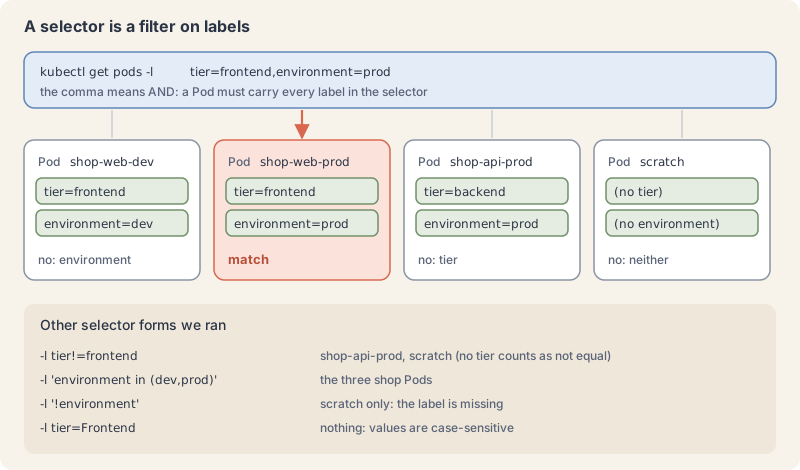
The labels page defines two kinds of selector. Equality-based uses =, == or !=. Set-based uses in, notin and plain existence (key or !key). A comma between requirements means AND, and there is no OR operator; in (a,b) is how you match either value.
Save four Pods as shop.yaml. Three of them carry tier and environment; the fourth, scratch, carries neither.
apiVersion: v1
kind: Pod
metadata:
  name: shop-web-dev
  namespace: k8s-from-zero
  labels:
    app.kubernetes.io/name: shop
    tier: frontend
    environment: dev
spec:
  containers:
    - name: web
      image: nginx:1.29-alpine
---
apiVersion: v1
kind: Pod
metadata:
  name: shop-web-prod
  namespace: k8s-from-zero
  labels:
    app.kubernetes.io/name: shop
    tier: frontend
    environment: prod
spec:
  containers:
    - name: web
      image: nginx:1.29-alpine
---
apiVersion: v1
kind: Pod
metadata:
  name: shop-api-prod
  namespace: k8s-from-zero
  labels:
    app.kubernetes.io/name: shop
    tier: backend
    environment: prod
spec:
  containers:
    - name: api
      image: nginx:1.29-alpine
---
apiVersion: v1
kind: Pod
metadata:
  name: scratch
  namespace: k8s-from-zero
  labels:
    app.kubernetes.io/name: scratch
spec:
  containers:
    - name: shell
      image: busybox:1.37
      command: ["sleep", "3600"]
The --- line separates objects in one file. Apply it and show the two labels as columns with -L:
kubectl apply -f shop.yaml
kubectl get pods -n k8s-from-zero -L tier,environmentExplain this command
kubectl apply -f shop.yaml
kubectl get pods -n k8s-from-zero -L tier,environmentkubectlThe Kubernetes command-line client. Subcommands and flags are documented under kubernetes.io/docs/reference/kubectl/.applyApply a configuration to a resource by file name or stdin. The apply docs say the resource is created if it does not exist yet. JSON and YAML are accepted.-fShort form of --filename. The file, directory or URL that contains the configuration to apply.shop.yamlThe file named by --filename. The lesson saves four Pods in it: shop-web-dev, shop-web-prod, shop-api-prod and scratch.kubectlThe Kubernetes command-line client. Subcommands and flags are documented under kubernetes.io/docs/reference/kubectl/.getDisplay one or many resources. kubectl get prints a table of the most important information about the resources you name.podsThe resource type to display. kubectl get points you to kubectl api-resources for the full list of types the server supports.-nShort form of --namespace. If present, the namespace scope for this CLI request.k8s-from-zeroThe namespace name passed to --namespace.-LShort form of --label-columns. The get docs say it accepts a comma-separated list of labels to present as columns, and that names are case-sensitive.tier,environmentTwo label keys for --label-columns, comma separated. The get docs say each label is presented as a column, so the lesson's table gains TIER and ENVIRONMENT.
pod/shop-web-dev created
pod/shop-web-prod created
pod/shop-api-prod created
pod/scratch created
NAME            READY   STATUS    RESTARTS   AGE   TIER       ENVIRONMENT
scratch         1/1     Running   0          8s
shop-api-prod   1/1     Running   0          8s    backend    prod
shop-web-dev    1/1     Running   0          8s    frontend   dev
shop-web-prod   1/1     Running   0          8s    frontend   prod
Now select:
kubectl get pods -n k8s-from-zero -l tier=frontend
kubectl get pods -n k8s-from-zero -l tier=frontend,environment=prod
kubectl get pods -n k8s-from-zero -l tier!=frontendExplain this command
kubectl get pods -n k8s-from-zero -l tier=frontend
kubectl get pods -n k8s-from-zero -l tier=frontend,environment=prod
kubectl get pods -n k8s-from-zero -l tier!=frontendkubectlThe Kubernetes command-line client. Subcommands and flags are documented under kubernetes.io/docs/reference/kubectl/.getDisplay one or many resources. kubectl get prints a table of the most important information about the resources you name.podsThe resource type to display. kubectl get points you to kubectl api-resources for the full list of types the server supports.-nShort form of --namespace. If present, the namespace scope for this CLI request.k8s-from-zeroThe namespace name passed to --namespace.-lShort form of --selector. A label query. The get docs say it supports '=', '==', '!=', 'in' and 'notin', and that matching objects must satisfy every constraint.tier=frontendThe label query. It asks for objects whose tier label equals frontend. The lesson matches shop-web-dev and shop-web-prod.kubectlThe Kubernetes command-line client. Subcommands and flags are documented under kubernetes.io/docs/reference/kubectl/.getDisplay one or many resources. kubectl get prints a table of the most important information about the resources you name.podsThe resource type to display. kubectl get points you to kubectl api-resources for the full list of types the server supports.-nShort form of --namespace. If present, the namespace scope for this CLI request.k8s-from-zeroThe namespace name passed to --namespace.-lShort form of --selector. A label query. The get docs say it supports '=', '==', '!=', 'in' and 'notin', and that matching objects must satisfy every constraint.tier=frontend,environment=prodThe label query. A comma means AND, so both requirements must match. The lesson says only shop-web-prod matches.kubectlThe Kubernetes command-line client. Subcommands and flags are documented under kubernetes.io/docs/reference/kubectl/.getDisplay one or many resources. kubectl get prints a table of the most important information about the resources you name.podsThe resource type to display. kubectl get points you to kubectl api-resources for the full list of types the server supports.-nShort form of --namespace. If present, the namespace scope for this CLI request.k8s-from-zeroThe namespace name passed to --namespace.-lShort form of --selector. A label query. The get docs say it supports '=', '==', '!=', 'in' and 'notin', and that matching objects must satisfy every constraint.tier!=frontendThe label query. Inequality. The lesson says this also matches scratch, which has no tier label, because inequality matches objects that lack the key.
NAME            READY   STATUS    RESTARTS   AGE
shop-web-dev    1/1     Running   0          9s
shop-web-prod   1/1     Running   0          9s
NAME            READY   STATUS    RESTARTS   AGE
shop-web-prod   1/1     Running   0          9s
NAME            READY   STATUS    RESTARTS   AGE
scratch         1/1     Running   0          9s
shop-api-prod   1/1     Running   0          9s
Notice that tier!=frontend also matched scratch, which has no tier at all. The docs spell this out: inequality matches objects without the key too. Set-based forms:
kubectl get pods -n k8s-from-zero -l 'environment in (dev,prod)'
kubectl get pods -n k8s-from-zero -l '!environment'Explain this command
kubectl get pods -n k8s-from-zero -l 'environment in (dev,prod)'
kubectl get pods -n k8s-from-zero -l '!environment'kubectlThe Kubernetes command-line client. Subcommands and flags are documented under kubernetes.io/docs/reference/kubectl/.getDisplay one or many resources. kubectl get prints a table of the most important information about the resources you name.podsThe resource type to display. kubectl get points you to kubectl api-resources for the full list of types the server supports.-nShort form of --namespace. If present, the namespace scope for this CLI request.k8s-from-zeroThe namespace name passed to --namespace.-lShort form of --selector. A label query. The get docs say it supports '=', '==', '!=', 'in' and 'notin', and that matching objects must satisfy every constraint.'environment in (dev,prod)'A set-based label query. The lesson says in (dev,prod) matches either value, and the single quotes keep the shell from reading the parentheses.kubectlThe Kubernetes command-line client. Subcommands and flags are documented under kubernetes.io/docs/reference/kubectl/.getDisplay one or many resources. kubectl get prints a table of the most important information about the resources you name.podsThe resource type to display. kubectl get points you to kubectl api-resources for the full list of types the server supports.-nShort form of --namespace. If present, the namespace scope for this CLI request.k8s-from-zeroThe namespace name passed to --namespace.-lShort form of --selector. A label query. The get docs say it supports '=', '==', '!=', 'in' and 'notin', and that matching objects must satisfy every constraint.'!environment'A set-based label query for objects without the environment key. The lesson's match is scratch. The single quotes keep the shell from treating the exclamation mark as history expansion.
NAME            READY   STATUS    RESTARTS   AGE
shop-api-prod   1/1     Running   0          9s
shop-web-dev    1/1     Running   0          9s
shop-web-prod   1/1     Running   0          9s
NAME      READY   STATUS    RESTARTS   AGE
scratch   1/1     Running   0          9s
Use single quotes around set-based selectors so your shell leaves the parentheses and ! alone.
Change labels with kubectl label. Adding is simple; changing an existing value needs --overwrite; a trailing - removes a key:
kubectl label pod scratch -n k8s-from-zero environment=dev
kubectl label pod scratch -n k8s-from-zero environment=test
kubectl label pod scratch -n k8s-from-zero environment=test --overwrite
kubectl label pod scratch -n k8s-from-zero environment-Explain this command
kubectl label pod scratch -n k8s-from-zero environment=dev
kubectl label pod scratch -n k8s-from-zero environment=test
kubectl label pod scratch -n k8s-from-zero environment=test --overwrite
kubectl label pod scratch -n k8s-from-zero environment-kubectlThe Kubernetes command-line client. Subcommands and flags are documented under kubernetes.io/docs/reference/kubectl/.labelUpdate the labels on a resource. The label docs say a trailing hyphen on a key removes that label, and --overwrite is required to change a value that is already set.podThe resource type.scratchThe Pod name. The lesson's scratch Pod starts with only the app.kubernetes.io/name label.-nShort form of --namespace. If present, the namespace scope for this CLI request.k8s-from-zeroThe namespace name passed to --namespace.environment=devA label assignment. The label command sets environment to dev.kubectlThe Kubernetes command-line client. Subcommands and flags are documented under kubernetes.io/docs/reference/kubectl/.labelUpdate the labels on a resource. The label docs say a trailing hyphen on a key removes that label, and --overwrite is required to change a value that is already set.podThe resource type.scratchThe Pod name. The lesson's scratch Pod starts with only the app.kubernetes.io/name label.-nShort form of --namespace. If present, the namespace scope for this CLI request.k8s-from-zeroThe namespace name passed to --namespace.environment=testA label assignment that fails here. environment already has the value dev and --overwrite is not given, so the lesson prints error: 'environment' already has a value (dev), and --overwrite is false.kubectlThe Kubernetes command-line client. Subcommands and flags are documented under kubernetes.io/docs/reference/kubectl/.labelUpdate the labels on a resource. The label docs say a trailing hyphen on a key removes that label, and --overwrite is required to change a value that is already set.podThe resource type.scratchThe Pod name. The lesson's scratch Pod starts with only the app.kubernetes.io/name label.-nShort form of --namespace. If present, the namespace scope for this CLI request.k8s-from-zeroThe namespace name passed to --namespace.environment=testA label assignment. The label command sets environment to test.--overwriteIf true, allow labels to be overwritten. The label docs say that otherwise an update which overwrites an existing label is rejected.kubectlThe Kubernetes command-line client. Subcommands and flags are documented under kubernetes.io/docs/reference/kubectl/.labelUpdate the labels on a resource. The label docs say a trailing hyphen on a key removes that label, and --overwrite is required to change a value that is already set.podThe resource type.scratchThe Pod name. The lesson's scratch Pod starts with only the app.kubernetes.io/name label.-nShort form of --namespace. If present, the namespace scope for this CLI request.k8s-from-zeroThe namespace name passed to --namespace.environment-The label key environment with a trailing hyphen. The label docs say this removes that label and does not require --overwrite.
pod/scratch labeled
error: 'environment' already has a value (dev), and --overwrite is false
pod/scratch labeled
pod/scratch unlabeled
Selectors also work on commands that change things. Label every shop Pod at once, list them by the new label, then delete only the dev ones:
kubectl label pods -n k8s-from-zero -l app.kubernetes.io/name=shop team=payments
kubectl get pods -n k8s-from-zero -l team=payments -o name
kubectl delete pods -n k8s-from-zero -l environment=devExplain this command
kubectl label pods -n k8s-from-zero -l app.kubernetes.io/name=shop team=payments
kubectl get pods -n k8s-from-zero -l team=payments -o name
kubectl delete pods -n k8s-from-zero -l environment=devkubectlThe Kubernetes command-line client. Subcommands and flags are documented under kubernetes.io/docs/reference/kubectl/.labelUpdate the labels on a resource. The label docs say a trailing hyphen on a key removes that label, and --overwrite is required to change a value that is already set.podsThe resource type.-nShort form of --namespace. If present, the namespace scope for this CLI request.k8s-from-zeroThe namespace name passed to --namespace.-lShort form of --selector. A label query. The get docs say it supports '=', '==', '!=', 'in' and 'notin', and that matching objects must satisfy every constraint.app.kubernetes.io/name=shopThe label query. It asks for objects whose app.kubernetes.io/name label equals shop.team=paymentsA label assignment. The label command sets team to payments.kubectlThe Kubernetes command-line client. Subcommands and flags are documented under kubernetes.io/docs/reference/kubectl/.getDisplay one or many resources. kubectl get prints a table of the most important information about the resources you name.podsThe resource type to display. kubectl get points you to kubectl api-resources for the full list of types the server supports.-nShort form of --namespace. If present, the namespace scope for this CLI request.k8s-from-zeroThe namespace name passed to --namespace.-lShort form of --selector. A label query. The get docs say it supports '=', '==', '!=', 'in' and 'notin', and that matching objects must satisfy every constraint.team=paymentsThe label query. It asks for objects whose team label equals payments.-oShort form of --output. It selects the output format. For get, the formats include json, yaml, name, jsonpath, custom-columns and wide.nameAn output format. The get synopsis includes name, which prints each object as type/name.kubectlThe Kubernetes command-line client. Subcommands and flags are documented under kubernetes.io/docs/reference/kubectl/.deleteDelete resources by file names, stdin, resources and names, or by resources and label selector.podsThe resource type.-nShort form of --namespace. If present, the namespace scope for this CLI request.k8s-from-zeroThe namespace name passed to --namespace.-lShort form of --selector. A label query. The get docs say it supports '=', '==', '!=', 'in' and 'notin', and that matching objects must satisfy every constraint.environment=devThe label query. It asks for objects whose environment label equals dev.
pod/shop-api-prod labeled
pod/shop-web-dev labeled
pod/shop-web-prod labeled
pod/shop-api-prod
pod/shop-web-dev
pod/shop-web-prod
pod "shop-web-dev" deleted from k8s-from-zero namespace
Run kubectl get pods -l ... before any delete -l ... with the same selector. It is the cheapest safety check in Kubernetes. Clean up with kubectl delete -f shop.yaml; kubectl reports NotFound for shop-web-dev, which you already deleted, and removes the rest.
When it goes wrong
createon something that exists. Symptom:Error from server (AlreadyExists): error when creating "web.yaml": pods "web" already exists.createonly creates. Useapplyfor files you keep changing.- A change you made disappears. Symptom: a value you set with
editorlabelis back to the old one after the next deploy. The field is owned by a file that someone applied again. Change the file instead, and keep each object under one technique. - The cluster refuses an update. Symptom:
spec: Forbidden: pod updates may not change fields other than .... Most Pod fields are fixed after creation. Delete and recreate the Pod, or, from part 7 on, change the Deployment that owns it. - A label change is refused. Symptom:
'environment' already has a value (dev), and --overwrite is false. kubectl protects existing values. Add--overwritewhen you mean it. - A selector matches nothing, or too much. Symptom:
No resources found, or a!=selector that also hits unlabelled objects. Values are case-sensitive (-l tier=Frontendfound nothing), and!=matches objects without the key. Check with--show-labelsor-L <key>first.
Cheat sheet
| Task | Command or field | Note |
|---|---|---|
| Run a Pod with no file | kubectl run quick --image=nginx:1.29-alpine |
imperative, for one-offs |
| Generate a manifest | kubectl run web --image=nginx:1.29-alpine --dry-run=client -o yaml > web.yaml |
edit, then keep it in Git |
| Preview a change | kubectl diff -f web.yaml |
exit 0 none, 1 changes, above 1 error |
| Create or update from files | kubectl apply -f web.yaml |
also -f dir/, -R for subfolders |
| Validate without storing | kubectl apply -f web.yaml --dry-run=server |
runs admission checks |
| Field documentation | kubectl explain pod.spec.containers |
dot paths go deeper |
| Edit live | kubectl edit pod web |
lost on the next apply of a file that owns the field |
| Patch one field | kubectl patch pod web --type=merge -p '{"metadata":{"labels":{"k":"v"}}}' |
good in scripts |
| Extra columns | kubectl get pods -o wide |
IP and node for Pods |
| Names only | kubectl get pods -o name |
pod/web, for loops |
| One field | kubectl get pods -o jsonpath='{.items[*].metadata.name}' |
range ... end to loop |
| Your own table | kubectl get pods -o custom-columns=NAME:.metadata.name,NODE:.spec.nodeName |
JSONPath per column |
| Sort | kubectl get pods --sort-by=.metadata.creationTimestamp |
any JSONPath field |
| Show labels | kubectl get pods --show-labels or -L tier |
-L adds a column per key |
| Select by label | kubectl get pods -l tier=frontend,environment=prod |
comma means AND |
| Set-based select | kubectl get pods -l 'environment in (dev,prod)' |
also notin, key, !key |
| Add, change, remove a label | kubectl label pod web k=v, --overwrite, k- |
works with -l too |
| See the API request | kubectl get pods -v=6 |
prints verb and URL |
| List resource types | kubectl api-resources |
short names and API versions |
Recap and what is next
- Imperative commands are for quick work; keep real objects in files and use
diffthenapply. --dry-run=client -o yamlwrites a correct starting manifest;explaintells you what each field means.- Every kubectl command is an HTTPS request to the API server;
-v=6shows it. -o wide,name,yaml,json,jsonpathandcustom-columnsshape output for people and scripts.- Labels describe objects and selectors pick them; a comma is AND, and
!=also matches missing keys.
Next: Kubernetes from Zero, part 6: Namespaces, labels and annotations.
Command explanations and quoted passages in this lesson come from or adapt the kubectl reference and the Kubernetes documentation, © The Kubernetes Authors, licensed under CC BY 4.0. We shortened and edited some passages. Kubernetes® is a registered trademark of The Linux Foundation. aitamer.news is not affiliated with or endorsed by The Linux Foundation or the CNCF.
The Campfire
CommentsThanks. Your comment is waiting for the desk. Once it is approved it appears here within about a minute.
Add a comment